How to Use a TI-30XS Calculator for Algebra: A Simple Step-by-Step Guide
Can You Use a TI-30XS for Algebra?
Yes, you can use a TI-30XS calculator for algebra. It’s a scientific calculator commonly used in middle school and high school math classes. It is an approved calculator for SAT and ACT testing, while AP calculator rules vary by subject and section (details below).
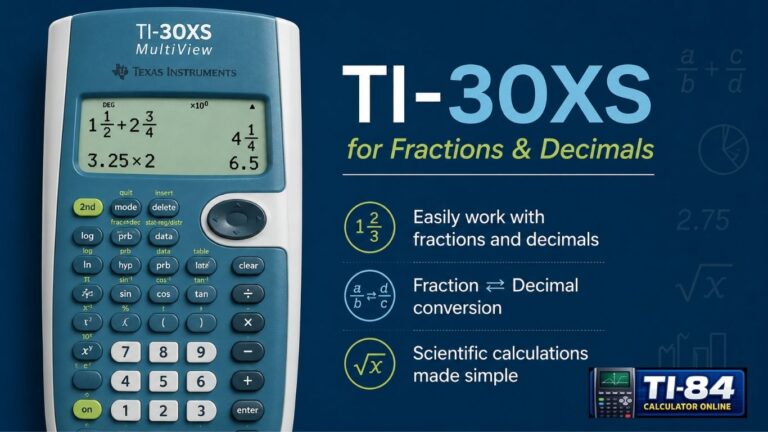
Whether you’re simplifying expressions, working with fractions, or checking your homework, the TI-30XS MultiView can handle most of the algebra problems you’ll run into.
That said, it’s important to know what this calculator can and can’t do. The TI-30XS is not a graphing calculator, and it doesn’t solve equations symbolically the way a CAS (computer algebra system) calculator does.
What it does well is evaluate expressions accurately, following the correct order of operations, and let you store a value in a variable so you can check algebra work with confidence. If you eventually move on to a graphing model, the same substitution logic carries over. See how to use a TI-84 calculator for the graphing-calculator version of these habits.
In this guide, you’ll learn exactly how to enter algebra expressions, work with parentheses, fractions, exponents, and square roots, store values in variables, and avoid the most common mistakes students make.
What Algebra Problems Can the TI-30XS Help With?
The TI-30XS runs on Texas Instruments’ Equation Operating System (EOS). In practical terms, EOS determines the order in which the calculator evaluates the parts of an expression, including parentheses, functions, fractions, exponents and roots, multiplication and division, and addition and subtraction.
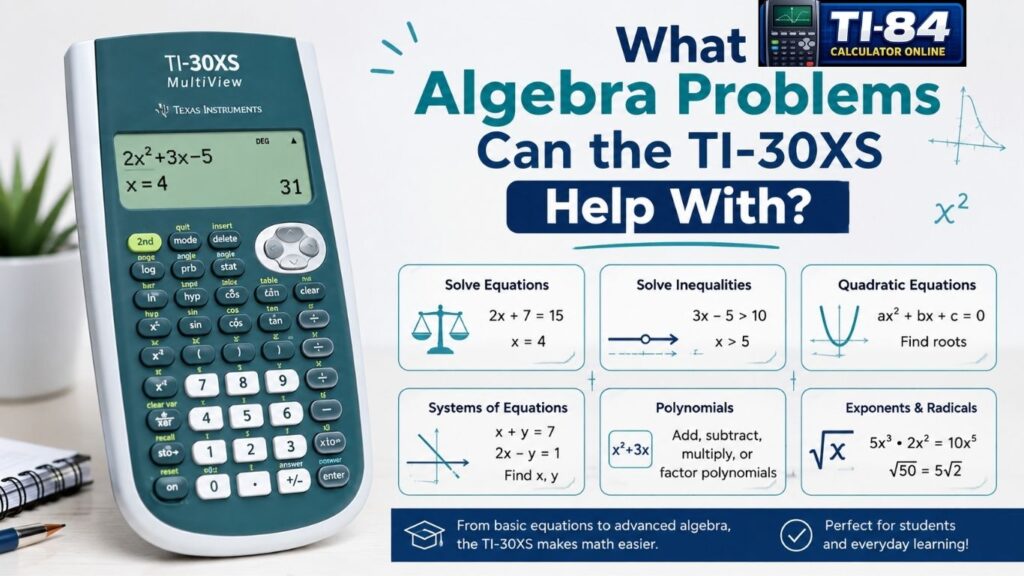
This includes the familiar order-of-operations logic students often learn as PEMDAS. EOS also lets you enter an expression with several operations in one line, similar to how it appears on paper, instead of forcing you to calculate each step separately.
Here’s what it can help you with in algebra:
- Evaluating numeric expressions with parentheses, exponents, and roots
- Simplifying and converting fractions
- Storing a number to a variable (like x) and reusing it across an expression
- Checking answers to linear equations once you plug in a number
- Calculating powers, square roots, and cube roots
- Switching between exact answers (fractions and roots) and decimal answers
- Generating a table of (x, y) values for a given function
Because it uses MathPrint mode, expressions on the TI-30XS look almost exactly like they do in your textbook, with stacked fractions and real exponents instead of a long line of parentheses.
Table of Contents
How to Enter Algebra Expressions on a TI-30XS
Entering expressions on the TI-30XS is straightforward once you understand the basics.
- Type the expression the same way you’d write it on paper.
- Use the arrow keys to move the cursor if you need to fix something before pressing Enter.
- Press the Enter key to calculate the result.
For example, if you want to evaluate 3(4 + 2) − 5, you would type it in almost exactly as written:
3(4 + 2) − 5
The calculator applies the order of operations automatically. First, it solves what’s inside the parentheses (4 + 2 = 6), then multiplies (3 × 6 = 18), and finally subtracts (18 − 5 = 13). Your answer is 13.
This is the real value of using a TI-30XS calculator for algebra. You don’t have to solve each step separately. You just enter the full expression, and the calculator follows the rules correctly. If you’d rather practice this on-screen first, a TI-30XS calculator online works the same way before you touch the physical device.
How to Calculate Expressions With Parentheses
Parentheses often confuse students, but they’re actually one of the easiest things to handle on this calculator, because EOS always resolves what’s inside parentheses before anything else.
College Board’s AP calculator policy
- Step 1: Solve inside the parentheses → 3 + 5 = 8
- Step 2: Multiply → 2 × 8 = 16
- Step 3: Divide → 16 ÷ 4 = 4
Type the whole thing in at once, and the calculator gives you the final answer, 4, without you needing to break it into separate steps.
Working With Variables: Substitution vs. the STO Key
The TI-30XS doesn’t isolate a variable symbolically, but it does have a built-in way to plug values into an expression: the STO (store) key.
There are two ways to handle a variable like x in an expression such as (x + 3):
- Manual substitution: Decide what x equals, then type the number directly in place of x. If x = 5, you’d enter (5 + 3), and the calculator returns 8.
- Using the STO key: Enter a number, press the STO key, then press the key for the variable (like x) to store that value. From then on, any expression you type that includes x will automatically use the stored value, so you don’t have to retype the number every time. This is especially handy when you’re checking the same expression against several different x values.
Either method works. Manual substitution is faster for a one-off check; storing a value to x is faster if you’re reusing the same expression repeatedly.
How to Use Fractions in Algebra
Fractions come up constantly in algebra, and the TI-30XS handles them well.
To enter a fraction, use the fraction key. This creates a small template with a spot for the numerator and a spot for the denominator, so it looks just like a fraction on paper.
Example: 3/4 + 1/2
Enter the first fraction, move to the next field, then enter the second fraction and add them together. The calculator automatically simplifies the result and displays it as an exact fraction, in this case, 5/4.
The TI-30XS can display exact forms such as fractions and simplified roots, and its answer-toggle key lets you switch between an exact result and a decimal approximation. This is especially useful when you need to compare an exact answer to a decimal answer for a worksheet or test.
How to Use Exponents and Square Roots
Exponents and square roots are entered using dedicated keys, and MathPrint mode displays them exactly the way they appear in your textbook.
For exponents:
Use the exponent key (^) to raise a number to a power. Entering 4^2 gives you 16. If the exponent contains an expression or a negative number, put it in parentheses so the calculator evaluates the entire exponent correctly.
For square roots:
Press the second function key, then the square key, to bring up the square root symbol. Typing in 16 after that gives you an exact answer of 4.
For cube roots and higher roots:
The calculator can also handle cube roots and other roots through the math menu, which is helpful once your algebra work moves beyond basic squares and square roots.
One thing worth remembering: when a root doesn’t simplify to a whole number, the TI-30XS will show you the exact answer first (like a simplified radical), and you can press the answer-toggle key to see the decimal version instead.
Can the TI-30XS solve equations for x?
Not symbolically, and this is the single most important thing to understand before relying on it for algebra homework. The TI-30XS is an evaluator, not a solver. It won’t take an equation like 2x + 3 = 11 and isolate x on its own the way a CAS calculator or a graphing calculator with an equation solver might.
What it can do is help you verify a value of x you’ve already solved for by hand, using either manual substitution or the STO key described above. It can also build a table of (x, y) values for a function, which is useful for spotting patterns in linear or quadratic relationships even though it isn’t a graph.
How to Check Algebra Answers
One of the best uses for this calculator in algebra class is checking your own work. Here’s a simple method:
- Solve the equation by hand first.
- Substitute your answer back into the original equation (or store it to x with the STO key).
- Enter the resulting expression into the calculator.
- If both sides come out equal, your answer is correct.
For example, if you solved 2x + 3 = 11 and got x = 4, you’d substitute 4 back in: 2(4) + 3. Enter that into the calculator, and if it equals 11, you know your answer checks out.
This substitution method works for linear equations and, with a little extra care, for quadratic equations too, as long as you’re checking a specific value rather than asking the calculator to solve for the variable itself.
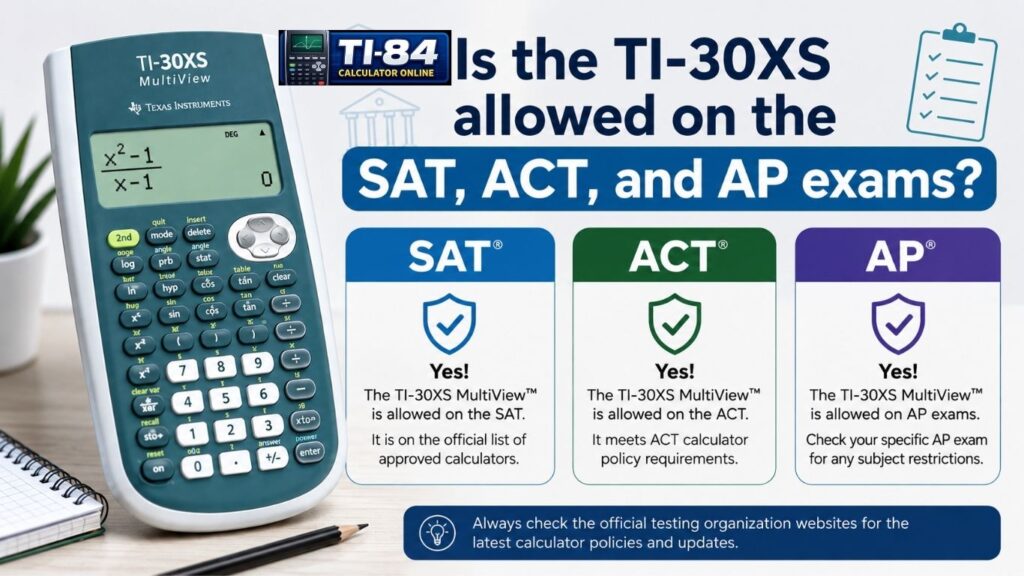
Is the TI-30XS allowed on the SAT, ACT, and AP exams?
Yes, but the details differ by test, and digital testing has changed things since the older paper-only rules:
SAT:
The digital SAT (via the Bluebook app) now includes built-in Desmos scientific and graphing calculators available throughout the math section. You’re not required to bring a handheld device, but you’re still permitted to bring an approved calculator like the TI-30XS if you prefer physical buttons. You can even use both during the test.
ACT:
On the paper-based ACT, you must bring your own approved calculator. On the digital ACT, a built-in Desmos graphing calculator is available during the math section, while students can also bring an approved handheld calculator.
AP exams:
AP calculator rules vary by subject and section. Some AP exams don’t allow calculators, while others allow scientific or graphing calculators. AP Calculus, for example, requires a graphing calculator for specified sections, so a scientific calculator like the TI-30XS isn’t sufficient there. For 2026 AP exams, several subjects also provide subject-specific Desmos calculators through Bluebook, with the available calculator type varying by exam.
Because these policies are updated periodically, it’s worth confirming current rules directly with College Board’s AP calculator policy and the official ACT calculator policy before your test date.
How to Use a TI-30XS Calculator Online for Algebra
If you don’t have the physical device with you, a TI-30XS calculator online tool can be a convenient backup for homework or quick practice. An online version mirrors the same layout and button functions as the real calculator, so you can practice entering expressions, fractions, and exponents without needing the physical device on hand.
This is especially handy for students who want to review algebra problems at home or on a shared school computer. Students moving on to graphing work later can also practice with a TI-84 calculator online before buying a physical unit. Just keep in mind that for an actual test day, you’ll need whichever device is on that specific exam’s approved list; see the section above.
Common TI-30XS Algebra Mistakes
Even experienced students run into a few common issues. Here’s what to watch for:
- Forgetting parentheses around exponents. If your exponent contains an expression or a negative number, put it in parentheses so the calculator evaluates the entire exponent correctly.
- Expecting the calculator to solve for a variable. The TI-30XS evaluates expressions; it doesn’t isolate x for you like a CAS calculator would.
- Forgetting the stored value hasn’t changed. If you use the STO key and later mean to use a different x value, you have to store the new number; the old one stays until you overwrite it.
- Not double-checking MathPrint entries. Since expressions are stacked visually, it’s easy to place a number in the wrong spot if you’re moving quickly.
- Ignoring the answer-toggle key. Many students miss that they can switch between exact and decimal answers, which is often required for showing work on tests.
TI-30XS Algebra Practice Examples
Try these on your own calculator to build confidence:
- 5(2 + 3) − 4 → Solve inside parentheses first: 5 × 5 = 25, then 25 − 4 = 21
- 1/3 + 1/6 → Enter both fractions using the fraction key → The answer simplifies to 1/2.
- 6^2 − 10 → 36 − 10 = 26
- √49 + 3 → 7 + 3 = 10
- 2(x − 1) where x = 7 → Store 7 to x (or substitute directly): 2(7 − 1) = 2 × 6 = 12
Working through examples like these is the fastest way to get comfortable using a TI-30XS calculator for algebra homework and exam prep. For more worked examples and button-by-button walkthroughs, see how to use a TI-30XS calculator.
FAQs
Can the TI-30XS solve algebra equations for x?
No. It evaluates expressions using the correct order of operations, but it doesn’t isolate a variable symbolically. You need to solve for x manually, then use the calculator (via substitution or the STO key) to check your answer.
Is the TI-30XS allowed on the SAT and ACT?
Yes, on both, though on the digital SAT and digital ACT you’ll also have access to a built-in Desmos calculator, so bringing the TI-30XS is optional rather than required. See the section above for the details.
How do I switch between fractions and decimals on the TI-30XS?
Use the answer-toggle key. It switches your displayed answer between exact form, like a fraction or simplified root, and decimal form.
Can the TI-30XS graph equations?
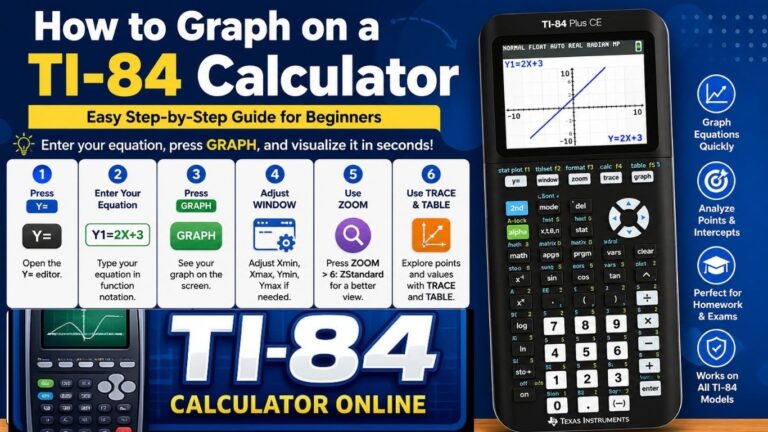
No. The TI-30XS is a scientific calculator, not a graphing calculator. It can generate a table of (x, y) values for a function, either automatically or by entering specific x values, but it cannot plot a visual graph the way a graphing calculator can. If you need graphing, see how to graph on a TI-84 calculator instead.
Can I use a free TI-30XS calculator online for practice?
Yes, online versions that mirror the real calculator’s layout, like this free TI-30XS calculator online, are useful for practicing algebra problems when you don’t have the physical device on hand.
Conclusion
The TI-30XS is a genuinely useful tool for algebra, as long as you understand what it’s designed to do. It won’t isolate x symbolically on its own, but it will accurately evaluate expressions, handle fractions and exponents with ease, store values in variables, and help you check your work with confidence. Once you get comfortable entering expressions with parentheses, fractions, and roots, you’ll find it becomes second nature.
Ready to practice? Try working through a few algebra problems on your TI-30XS today, or use a free TI-30XS calculator online tool to sharpen your skills before your next test. You can also browse more step-by-step calculator guides on the blog.
Sources & Further Reading
Texas Instruments — TI-30XS MultiView Scientific Calculator
College Board / AP Students — AP Exams Calculator Policy
ACT.org — ACT Calculator Policy
Related Guides
TI-30XS Calculator Online
How to Use a TI-30XS Calculator
How to Use a TI-84 Calculator
How to Graph on a TI-84 Calculator
TI-84 Calculator Online