
TI-84 Calculator Programming Guide (2026): Learn TI-BASIC Step by Step
Did you know your graphing calculator can do more than solve equations? This TI-84 Calculator Programming Guide walks you through everything you need to write, run, and fix your own programs using TI-BASIC, the built-in language on every TI-84 model.
You don’t need any coding background to start. If you can follow simple steps and press a few buttons, you can learn TI-BASIC. By the end of this TI-84 calculator programming guide, you will know how to open the program editor, use key commands, build loops, and create several working calculator utilities. If you don’t have a physical device handy, you can also practice these same commands using a TI-84 calculator online.
Quick answer: TI-84 programming means writing commands in TI-BASIC. You open the Program Editor by pressing PRGM, choosing NEW, and typing commands like Prompt, Disp, and STO→ to build, run, and fix your own programs directly on the calculator.
What Is TI-BASIC? A Beginner’s TI-84 Calculator Programming Guide
TI-BASIC is the programming language built into TI-84 calculators. Texas Instruments made it so students could write simple programs without needing a computer or extra software. It uses plain commands like Disp, Input, and For, so it reads almost like everyday instructions.
Learning TI-BASIC is a smart first step into computer science because:
- You already own the device, so there’s nothing extra to buy.
- The program editor is built right into your calculator’s menu.
- It teaches real programming ideas like variables, loops, and functions.
- It helps with math and science homework.
- It’s a friendly bridge if you want to learn Python or another language later.
Table of Contents
TI-84 Plus, TI-84 Plus CE, and TI-84 Evo: What’s the Difference?
TI-84 Plus
(the original black-and-white model): supports TI-BASIC and Z80 assembly language.
TI-84 Plus CE
(the color model released in 2015): supports TI-BASIC. Older units could also run assembly and C programs, but Texas Instruments removed assembly and C support beginning with OS 5.6, released in 2020.
TI-84 Evo
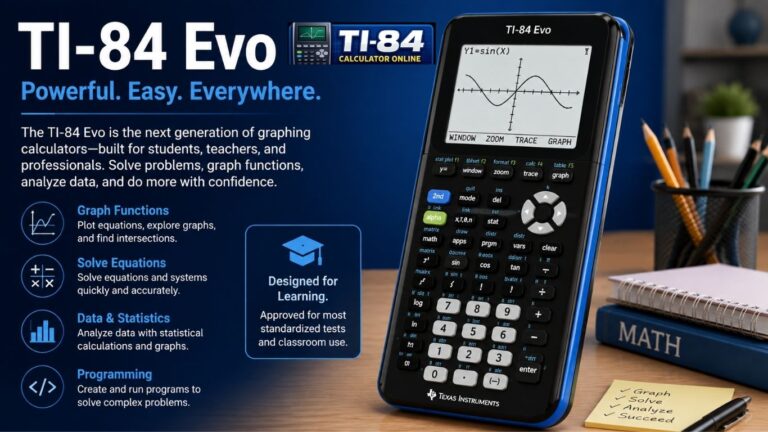
The TI-84 Evo (introduced in 2026) supports TI-BASIC and built-in Python. Feature availability may change with future operating system updates.
Good news: TI-BASIC commands work almost the same across all three models, so this TI-84 calculator programming guide applies to both the TI-84 Plus CE and the older TI-84 Plus. Not sure which model you own or want to try commands first? Practice on our TI-84 Plus CE online emulator before typing anything on your real device.
How to Open the Program Editor: Your On-Calculator Source Code Editor
Every program you write starts in the same place: the built-in source code editor on your calculator.
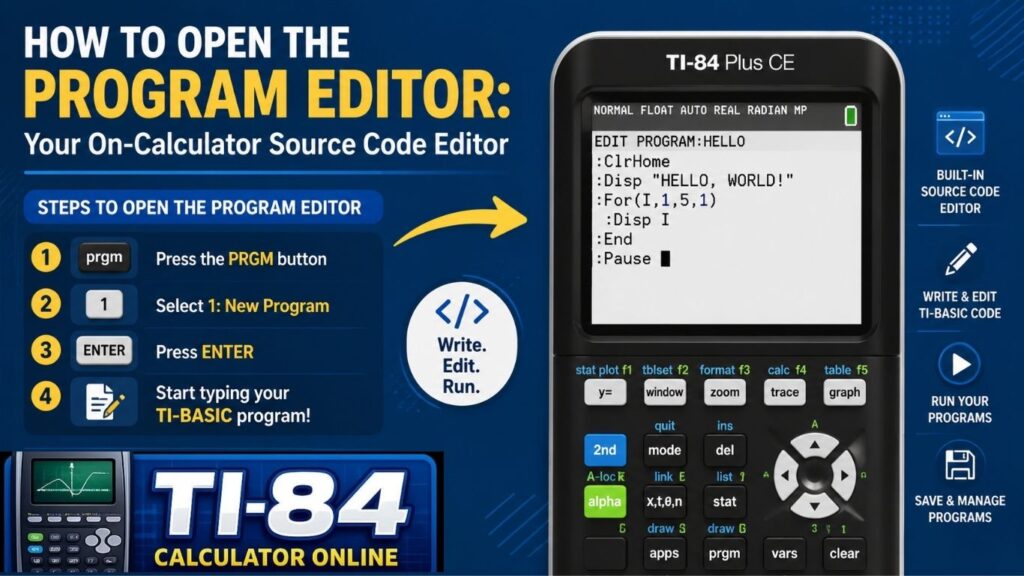
Step 1: Press the PRGM key. This opens the program menu.
Step 2: Arrow over to NEW, then choose “Create New.”
Step 3: Type a name for your program. Rules:
- The name can be 1 to 8 characters long.
- The first character must be a letter (A–Z) or the theta symbol.
- The rest can be letters, numbers, or theta.
Press ENTER, and the Program Editor will open, ready for you to type commands. Want to try this without a physical calculator? Our TI84 simulator lets you open a virtual Program Editor and test commands instantly.
Common TI-BASIC Commands
- Disp—shows text or a value on the screen
- Output (– shows text at a specific row and column
- Input—lets the user type a value, with an optional message
- Prompt – asks the user to enter one or more values
- ClrHome – clears the screen
- Pause—stops the program until the user presses ENTER
- Menu (creates a menu with a title and choices
- STO→ – stores a value into a variable
- For ( … End – repeats commands a fixed number of times
- While … End – repeats commands while a condition is true
- Repeat … End – repeats commands until a condition becomes true.
- If/Then/Else/End—runs different commands depending on a condition
- Lbl / Goto – marks a spot in the program and jumps to it
Storing Variables
To store a value, type the number, press STO→, then pick a letter (A–Z or theta). For example, storing 5 into A looks like 5 STO→ A. After that, typing A anywhere in the program uses the value 5.
Loops and If Statements
For loop
repeats a fixed number of times. Example: count from 1 to 10 and show each number.
While loop
repeats as long as a condition is true. Example: keep showing a number and adding 1 to it until it reaches 10.
Repeat loop
Similar to while, but it repeats until the condition becomes true (checked after each round).
If/Then/Else
lets the program choose between actions. Example: if a number equals 10, show “TEN”; otherwise, show “NOT TEN.” You can also write a short “if” without “then,” which just runs the next single line if true.
Goto and Lbl
LBL marks a spot with a name, and Goto jumps to it. Useful for menus or repeating sections without a formal loop.
Beginner TI-BASIC Tutorial: 5 Example Programs from This TI-84 Calculator Programming Guide
Odd or Even Checker
This beginner program asks for a number and tells you whether it is even or odd.
ClrHome
Prompt N
If fPart(N/2)=0
Then
Disp "EVEN"
Else
Disp "ODD"
End
Pause
Quadratic Formula
This program asks for A, B, and C, then shows both possible values of X.
ClrHome
Prompt A,B,C
(-B+√(B²-4AC))/(2A)→D
(-B-√(B²-4AC))/(2A)→E
Disp D,E
Pause
Distance Formula
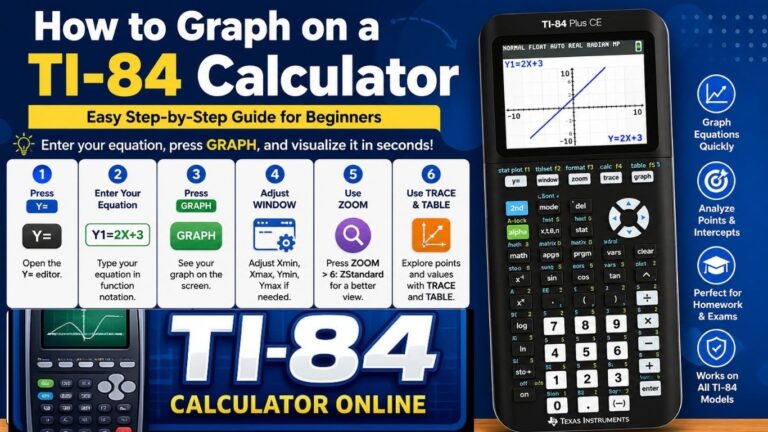
This program finds the distance between two points. Once you have D, you can plot the two points and check your work—see our guide on How to Graph on a TI-84 Calculator for the graphing steps.
ClrHome
Prompt X1,Y1,X2,Y2
√((X2-X1)²+(Y2-Y1)²)→D
Disp D
Pause
Slope Formula
This program calculates the slope between two points.
ClrHome
Prompt X1,Y1,X2,Y2
(Y2-Y1)/(X2-X1)→M
Disp M
Pause
Grade Calculator
This program converts a numeric score into a letter grade.
ClrHome
Prompt S
If S≥90
Then
Disp "GRADE: A"
Else
If S≥80
Then
Disp "GRADE: B"
Else
If S≥70
Then
Disp "GRADE: C"
Else
Disp "GRADE: F"
End
End
End
Pause
Your Programming Workflow: Running and Editing Programs
A smooth programming workflow means writing, testing, and fixing your code in small steps.
To run a program:
- Press PRGM.
- Choose the program name from the EXEC menu.
- It pastes as “prgmNAME” on the home screen.
- Press ENTER to run it
To edit a program:
- Press PRGM.
- Choose EDIT, then select the program.
- Make changes, then quit it saves automatically.
Writing Programs on a Computer
Texas Instruments offers free software called TI Connect CE that lets you write and send programs from a computer:
- Download and install TI Connect CE.
- Connect your TI-84 using the USB cable.
- Open TI Connect CE and let it find your calculator.
- Click Program Editor and write your program.
- Click Actions, then “Send to Calculator.”
Prefer not to install anything? You can also write and test TI-BASIC code using a TI-84 calculator without download or a free online TI-84 emulator, both run entirely in your browser.
TI-84 Calculator Coding Tips: Fixing Common Errors
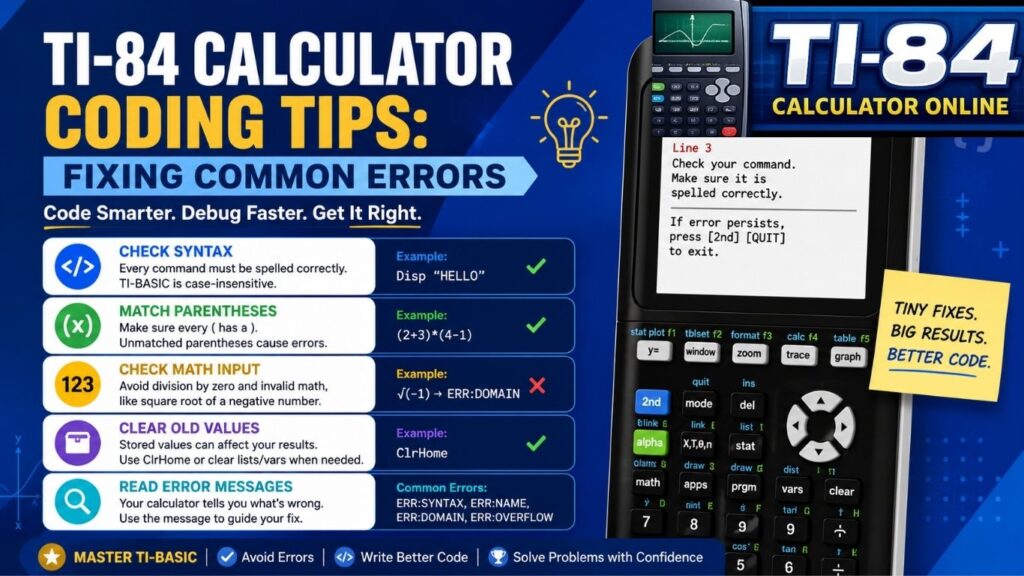
- Syntax error: usually means a command is missing something, like a closing parenthesis or a comma. Check the highlighted line against the correct format.
- Domain error: Happens when a value is outside what’s allowed, such as the square root or logarithm of a negative number, or a list position that doesn’t exist.
- Undefined error: This means the program is using a variable that has no value yet. Add a Prompt, Input, or Store command earlier to fix it.
Tip: add extra Disp commands while debugging to check variable values as the program runs. If your calculator starts behaving unexpectedly after testing a new program, a full calculator reset can often clear things up.
Best Practices for TI-BASIC Programming for Beginners
- Start small: a short working program beats a long, broken one.
- Use Catalog Help (press the plus key) to see the correct command syntax.
- Sketch your logic on paper first
- Test often, not just at the end.
- Keep program names short and clear
Frequently Asked Questions
What is TI-BASIC used for
It’s the built-in language on TI-84 calculators, used for math formulas, games, and classroom projects.
Can I program on any TI-84 model?
Yes, TI-BASIC works on the Plus, Plus CE, and Evo models.
Is TI-BASIC hard to learn?
No, it uses plain commands and is one of the easier ways to start programming.
Do I need a computer?
No, you can do everything on the calculator, though TI Connect CE software is a helpful option. You can also try a virtual TI-84 graphing calculator right in your browser.
Can I use Python instead?
Only the TI-84 Evo has built-in Python support. Other models use TI-BASIC.
How do I fix a syntax error?
Open the program, check the highlighted line, and make sure all parentheses and commas are correct.
Have more questions?
Check our full TI-84 calculator online FAQs for answers on setup, features, and troubleshooting. If you use a different model for basic calculations, our TI-30XS calculator online tool is also available
Conclusion
This TI-84 Calculator Programming Guide covered everything you need to start coding on your calculator in a fun, practical way to build real programming skills. You now know how to open the Program Editor, use core commands, build loops and if statements, write formula programs, and fix common errors.
Keep practicing; try building a quiz program, a unit converter, or one of the formula solvers above using our TI-84 graphing calculator online, or open your physical calculator, press PRGM, and write your first line of code today.
Related Reading
- TI-84 Calculator Online
- TI-84 Graphing Calculator Online
- How to Graph on a TI-84 Calculator
- TI84 Simulator
- TI-84 Plus CE Online Emulator
- Reset TI-84 Calculator
- TI-84 Calculator Online FAQs

One Comment