
How to Graph on a TI-84 Calculator: A Complete Step-by-Step Guide
How to graph on a TI-84 calculator: press Y=, type your equation, then press GRAPH. If the graph looks off-screen, press ZOOM > 6: ZStandard or adjust the WINDOW settings. Use TRACE and TABLE to check coordinates, intercepts, and function values.
Graphing calculators can feel intimidating at first, with so many buttons and menus. The good news is that learning how to graph on a TI-84 calculator takes only a few steps once you know where to start.
This guide works for the TI-84 Plus, TI-84 Plus CE, TI-84 Plus CE Python Edition, and the legacy TI-84 Plus Silver Edition. You’ll learn how to enter equations, set the window, plot points, and analyze graphs. By the end, you can graph linear, quadratic, and exponential functions with confidence.
What Does It Mean to Graph on a TI-84 Calculator?
Graphing on a TI-84 calculator means typing a math equation into the calculator and letting it draw the picture for you. Instead of plotting points by hand on paper, you get the graph instantly.
This is helpful for:
- Algebra homework
- Geometry and trigonometry classes
- Statistics projects
- Calculus problems
- Classroom practice and general test preparation
Calculator rules can vary by test and change over time, so this list is meant as general guidance, not a guarantee. For example, the digital SAT now runs through the College Board’s Bluebook app with a built-in Desmos calculator rather than requiring a physical device, while some other exams still permit an approved TI-84. Always confirm the current policy directly with your test provider; see the College Board’s official SAT calculator policy before exam day.
Every TI-84 model, from the classic TI-84 Plus to the newer TI-84 Plus CE, uses a similar process. Once you learn one, you can graph on almost any TI-84 device, including in a TI-84 Calculator Online simulator, if you don’t have the physical hardware.
Before You Start Graphing
Before jumping into the steps, check these two things first.
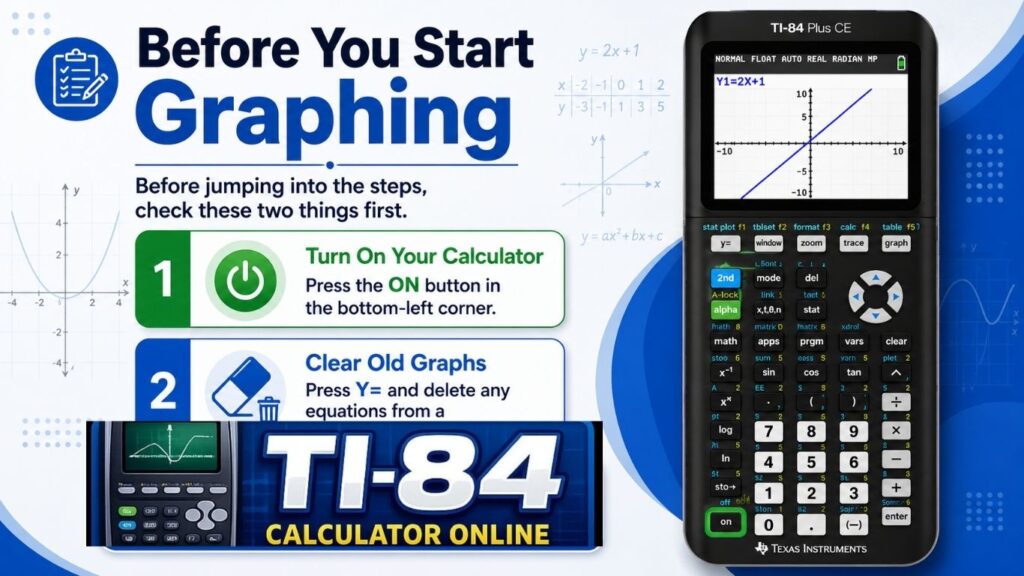
This keeps your screen clean and avoids confusing overlapping graphs.
Table of Contents
How to Graph on TI-84 Calculator: Step-by-Step
Here is the simple method for how to graph on a TI-84 calculator screen, no matter which model you own.
1: Press the Y= button
The Y= key is near the top-left of the keypad. This opens the equation editor, where you type in the function you want to graph.
2: Type Your Equation
Use the keypad to enter your equation next to Y1=. For example, to graph a simple line, you might type: Y1 = 2X + 3 Use the X, T, θ, and n keys to enter the variable X quickly.
3: Press the GRAPH button
Once your equation is typed, press GRAPH. Your calculator will instantly draw the line or curve on the screen.
4: Adjust the Window (If Needed)
Sometimes your graph looks too small or goes off the screen. This is where the WINDOW button comes in handy. Press WINDOW and adjust these settings:
- Xmin and Xmax (left and right edges)
- Ymin and Ymax (top and bottom edges)
- Xscl and Yscl (spacing between grid lines)
After adjusting, press GRAPH again to see the updated view.
5: Use ZOOM for a Quick Fix
If you don’t want to change numbers manually, press ZOOM, then select 6: ZStandard. This resets your graph to a normal, easy-to-read view.
6: Use TRACE to Read Points
Press TRACE and use the arrow keys to move along your graph. The screen will show the exact X and Y coordinates as you move. This is great for checking specific values.
That’s the full process for how to make a graph on a TI-84 calculator screen in under a minute once you get used to it. If you’d rather practice first, our TI-84 Graphing Calculator Online tool lets you run through these same steps in your browser.
How to Graph on a TI-84 Plus
The classic TI-84 Plus works exactly like the steps above. It has a black-and-white screen, but the buttons and menus are the same. Press Y=, type your equation, then hit GRAPH.
If your teacher asks how to graph on a TI-84 Plus calculator for a specific homework problem, just follow Steps 1 through 6 above. The process does not change based on the type of equation, whether it’s linear, quadratic, or exponential.
How to Graph on TI-84 Plus CE
The TI-84 Plus CE is the newer, colorful version of the calculator. It is thinner, has a rechargeable battery, and shows graphs in full color, which makes it easier to tell multiple lines apart. For a closer look at its hardware and specs, see our full TI-84 Plus CE guide.
For how to graph on TI-84 Plus CE devices, the steps are identical to the standard method:
- Press Y=
- Type your equation.
- Press GRAPH.
- Adjust WINDOW or use ZOOM if needed.
The only real difference is the colorful display, which many students find easier to read during class.
How to Graph on TI-84 Plus CE Python Edition
The TI-84 Plus CE Python Edition includes everything the regular CE has, plus a built-in Python programming feature. To graph on TI-84 Plus CE Python models, you still use the same Y=, GRAPH, and WINDOW buttons for regular graphing.
The Python app is separate and used for coding projects, not for standard function graphing. So if you just need a quick graph for homework, stick with the normal Y= method described earlier. If your calculator behaves differently than expected, check that you’re running the latest firmware in our TI-84 Plus CE OS guide.
How to Graph on TI-84 Plus Silver Edition and C Silver Edition
Older models like the TI-84 Plus Silver Edition and the TI-84 Plus C Silver Edition also follow the same graphing steps.
For how to graph on the TI-84 Plus Silver Edition and how to graph on the TI-84 Plus C Silver Edition devices:
- Press Y= to enter your function.
- Press GRAPH to view it.
- Use WINDOW and ZOOM to adjust the view.
These older models may have slightly different button colors or screen brightness, but the core graphing process has stayed the same across TI-84 versions for years. If you don’t own the physical device, our TI84 Simulator reproduces the same layout and menus.
How to Graph Points on a TI-84 Calculator
Sometimes you don’t need a full equation. You just want to plot specific points, like (2, 5) or (-3, 4).
Here is how to graph points on a TI-84 calculator screen:
- Press STAT, then select 1: Edit.
- Enter your X-values in list L1.
- Enter your matching Y-values in list L2.
- Press 2nd, then Y= to open the STAT PLOT menu.
- Turn Plot1 ON and select the scatter plot icon.
- Press GRAPH to see your points plotted.
This method is especially useful for statistics homework or science data.
How to Graph Inequalities on a TI-84 Calculator
Graphing inequalities is only slightly different from graphing regular equations. Here’s how to graph inequalities on a TI-84 calculator:
- Press Y=
- Type your inequality, such as Y > 2X + 1.
- Move the cursor to the far left of the equation, next to the slash symbol.
- Press ENTER to cycle through shading options (above the line, below the line, or none).
- Press GRAPH to view the shaded region.
The shaded area shows all the solutions that make the inequality true, which is a common feature tested in algebra classes.
Common Mistakes to Avoid
Even with clear steps, students often run into small problems. Watch out for these:
- Forgetting to clear old equations before typing a new one
- Using the wrong X button (always use the X, T, θ, and n keys, not the letter X on the alphabet keys)
- Skipping the WINDOW check when a graph looks blank or cut off
- Mixing up STAT PLOT settings when trying to graph points
Avoiding these small errors will save you time and frustration. If your calculator freezes or starts behaving oddly no matter what you try, our Reset TI-84 Calculator guide walks you through a full reset safely.
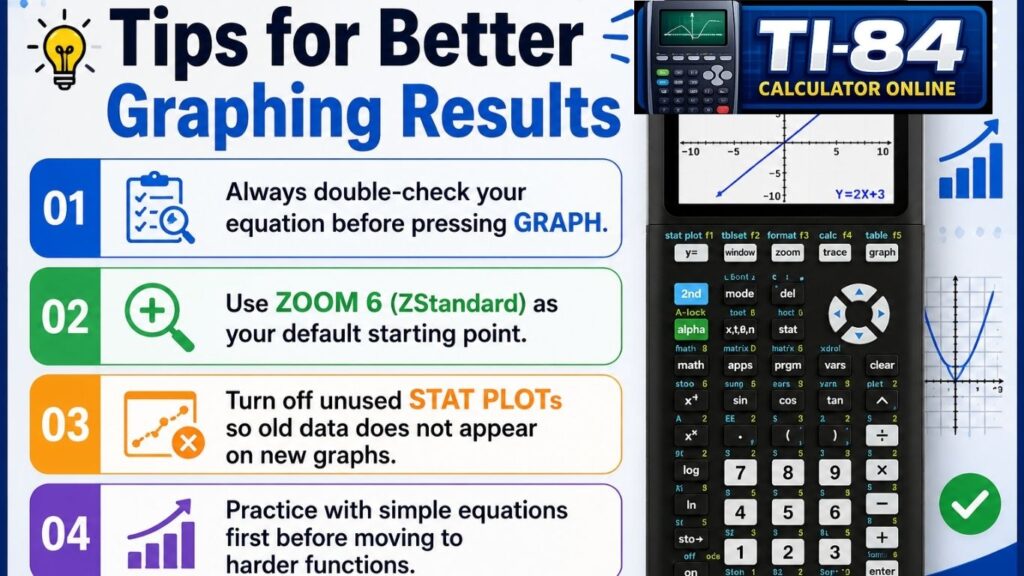
Tips for Better Graphing Results
Try It Online Before Using a Physical Calculator
If you don’t have your TI-84 handy, you can still practice using a browser-based TI-84 Calculator Online. It works the same way as a real device and is a great way to prepare for homework or exams without carrying your calculator everywhere. It’s also a genuinely useful option if you’re looking for a TI-84 calculator without downloading or a free TI-84 calculator emulator online.
For a version focused purely on plotting and visualizing functions, try our TI-84 Graphing Calculator Online. And if you’re curious how a browser tool compares to a full hardware emulator, our TI-84 Plus CE Online Emulator guide explains the differences, or check out our Virtual TI-84 Graphing Calculator for another take on the same idea.
Frequently Asked Questions
How do I graph on a TI-84 calculator?
To graph on a TI-84 calculator, press Y=, enter your equation, and then press GRAPH. If the graph does not appear correctly, adjust the WINDOW settings or select ZOOM > 6: ZStandard to reset the viewing area. You can use TRACE to inspect coordinates and TABLE to view corresponding x- and y-values.
Why can’t I graph on my TI-84?
If you can’t graph on your TI-84 calculator, the problem is usually caused by incorrect WINDOW settings, an inactive equation, enabled STAT PLOTS, or an error in the Y= editor. Reset the graph using ZOOM > ZStandard, verify your equation, and turn off unused plots before trying again
How do I graph on my calculator?
To graph on your TI-84 calculator, open the Y= editor, type your function, and press GRAPH. If the graph is difficult to see, adjust the WINDOW settings or use ZOOM for a better view. These steps work on the TI-84 Plus, TI-84 Plus CE, and compatible online graphing calculators.
How to turn on the graphing calculator, the TI-84 Plus?
To turn on a TI-84 Plus graphing calculator, press the ON key located in the lower-left corner of the keypad. If the display looks too dark or too light, press 2nd, then use the Up or Down arrow keys to adjust the screen contrast for easier viewing.
How do you plot a graph step by step?
To plot a graph on a TI-84 calculator step by step, press Y=, enter your equation in function notation, and select GRAPH. If needed, adjust the WINDOW settings or use ZOOM > ZStandard. Use TRACE and TABLE to analyze points, intercepts, and function values on the coordinate plane.
For more answers like these, see our full TI-84 Calculator FAQs page.
Editorial note: This guide was reviewed using the TI-84 Plus CE interface and browser-based TI-84 emulators that replicate the official keypad layout. Menu names and features may vary slightly depending on your operating system version or installed apps.
Conclusion
How to graph on a TI-84 Calculator comes down to five steps: press Y= to enter your equation, set the WINDOW, press GRAPH, use ZOOM to adjust the view, and press TRACE to read exact points. These steps work for linear equations, quadratic functions, and scatter plots.
The process is nearly identical on the TI-84 Plus, TI-84 Plus CE, TI-84 Plus CE Python Edition, and any browser-based TI-84 calculator. With regular practice, you will plot functions and analyze graphs on the coordinate plane faster.
Ready to practice? Try our TI-84 Calculator Online to graph your equations instantly.
References & Sources
- Texas Instruments Education – TI-84 Plus CE Documentation
- College Board – SAT Calculator Policy
- Desmos Graphing Calculator
Related Reading
- TI-84 Graphing Calculator Online
- TI-84 Calculator Online
- TI-84 Plus CE Online Emulator
- How to Reset a TI-84 Calculator
- TI-84 Plus CE OS Guide
- TI-84 Calculator FAQs
Sources
This tutorial was created using official Texas Instruments documentation, current College Board calculator guidance, and hands-on testing with TI-84 Plus, TI-84 Plus CE, and browser-based TI-84 graphing calculator emulators. Instructions have been reviewed and updated for July 2026 to ensure accuracy and relevance.





5 Comments