How to Use a TI-30XS Calculator: Easy Step-by-Step Guide
To use a TI-30XS calculator, turn it on, choose the right mode, enter your calculation using the number and function keys, and press ENTER to get your answer. The TI-30XS MultiView handles fractions, decimals, exponents, square roots, scientific notation, trigonometry, statistics, and other scientific calculations.
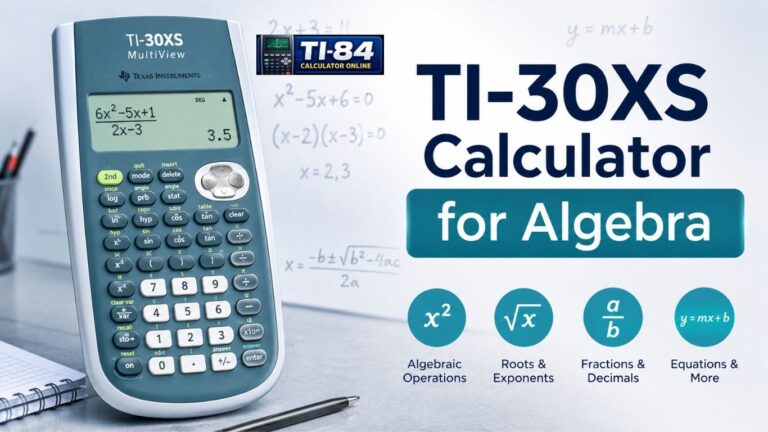
Math class gets a lot less stressful once you know your way around your calculator. If you just picked up a Texas Instruments TI-30XS MultiView Scientific Calculator and aren’t sure where to start, this How to Use a TI-30XS Calculator guide breaks down the buttons, modes, and functions you need in plain English. You’ll learn how to use the calculator for fractions, exponents, roots, scientific notation, trigonometry, and statistics, with simple steps you can follow while doing homework.
This guide is based on the official TI-30XS MultiView product page and eGuide from Texas Instruments. Button names, modes, statistics steps, and answer formats are based on TI’s published documentation, linked at the end of this article.
What Is the TI-30XS Calculator?
The TI-30XS MultiView is a scientific calculator made by Texas Instruments. It’s designed for a wide range of school-level mathematics and science calculations, from basic arithmetic to trigonometry and statistics.
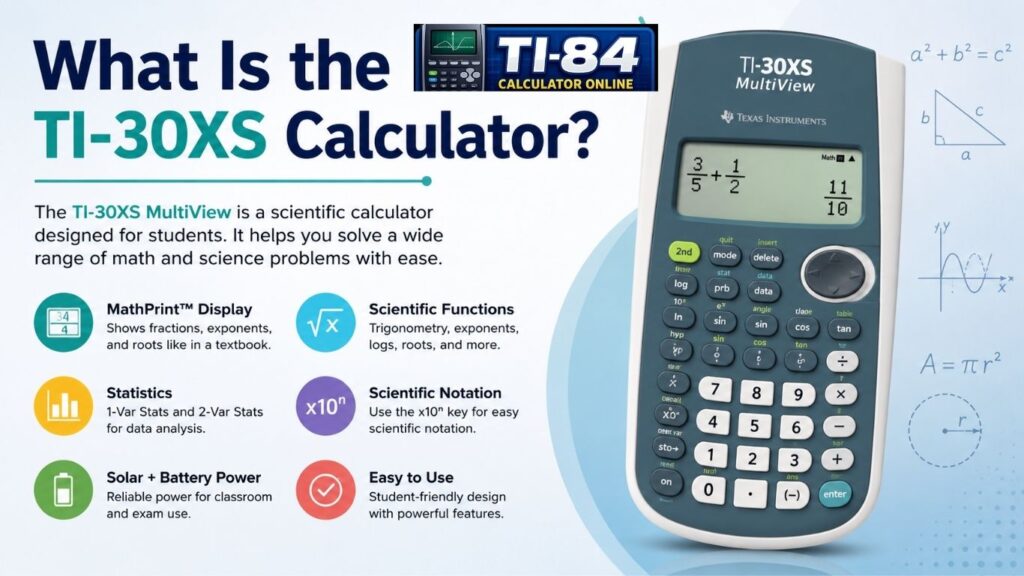
One of its key features is MathPrint mode, which shows fractions, exponents, and square roots the way they appear in a textbook instead of forcing you to type everything as one flat line with extra parentheses.
According to the official TI-30XS MultiView guidebook, the display can show up to four lines at once, with up to 16 characters per line, and you can scroll left or right when an entry runs longer than that.
Is the TI-30XS Easy to Use?
Yes. Once you know where the main keys are, most calculations take just a few button presses. MathPrint mode makes it even easier; what you type looks the same as what you’d write on paper, so there’s less guesswork.
Table of Contents
How to Check TI-30XS Calculator Settings
Before you start calculating, it helps to check your settings:
- Press ON to turn the calculator on.
- Press the MODE key to check your angle mode (degree, radian, or gradian) and display settings.
- Use the arrow keys to move through the menu and press ENTER to select an option.
- Press CLEAR to return to the home screen before starting a new problem.
Getting this right first avoids wrong answers later, especially in trigonometry problems.
Understanding the 2nd Function Key
Most keys on the TI-30XS do two jobs. The main function is printed right on the key, and a second function is printed above it in a different color. To use that second function, press 2nd first, then the key you need.
For example, pressing 2nd followed by the x² key calculates a square root instead of a square. You’ll use this combination constantly, so it’s worth practicing early rather than guessing your way through it later.
How to Use a TI-30XS Calculator Step by Step
- Turn on the calculator and confirm your mode settings.
- Type your mathematical expression using the number and function keys.
- Use the arrow keys to move through fractions, exponents, or roots before evaluating.
- Press ENTER to calculate the result.
- Press the Answer Toggle key to switch the result between fraction and decimal form.
- Press CLEAR to start a new calculation.
TI-30XS Calculator Buttons and Functions Explained
Here are the calculator functions you’ll use most often, based on the official TI-30XS MultiView guidebook:
| Task | TI-30XS Key |
| Fractions | n/d |
| Square root | 2nd + x² |
| Powers | ^ |
| Scientific notation | x10ⁿ |
| Trigonometry | sin, cos, tan |
| Statistics | 1-Var / 2-Var Stats |
| Exact/decimal forms | Answer Toggle |
| Previous answer | Ans |
- ENTER – calculates your expression
- CLEAR – clears the screen
- DEL – deletes one character at a time
- 2nd – unlocks the secondary function printed above a key
- Ans—recalls your most recent result
- n/d (fraction key) – opens fraction input in MathPrint mode
- Answer Toggle—switches the displayed result between fraction and decimal answers, exact square root and decimal, or exact pi and decimal.
- x² and ^ are used for squaring numbers and entering exponents.
- x10ⁿ – shortcut key for entering scientific notation
How to Do Basic Calculations on a TI-30XS
Basic arithmetic works the way you’d expect. Type your numbers, choose addition, subtraction, multiplication, or division, and press ENTER.
The TI-30XS follows the correct order of operations automatically using its Equation Operating System, so parentheses and exponents are calculated in the right sequence. Press the Ans key any time you want to reuse your last result instead of retyping it.
How to Correct an Entry on a TI-30XS
Mistakes happen, and the TI-30XS makes them easy to fix:
- Press DEL to remove a single character.
- Use the arrow keys to move through your expression before deleting.
- Press CLEAR to erase the whole line and start over.
- Scroll up through previous entries with the up arrow if you want to reuse or edit an earlier calculation.
You don’t need to clear everything just because of one wrong digit.
How to Use Fractions on a TI-30XS
Press the fraction key (n/d) to open fraction input, type your numerator, use the down arrow, and type your denominator.
The calculator automatically simplifies fraction answers and can display mixed numbers. After filling in a fraction template, press the right arrow key to move out of it before continuing with the rest of your calculation. Skipping this step is a common reason beginner entries come out wrong.
If you’d rather see a decimal, press the Answer Toggle key to switch the result instantly.
How to Use Square Roots and Exponents
To find a square root, press 2nd and then the x² key, then type the number.
For exponents, use the ^ key: type your base, press ^, then type the power. There’s also a dedicated x² key for quick squaring. Cube roots and other roots are available through the calculator’s math menu.
How to Use Scientific Notation on a TI-30XS
The TI-30XS MultiView doesn’t have a dedicated EE key like some other calculators. Instead, it uses the x10ⁿ shortcut key for scientific notation.
To enter a number like 6.024 × 10²⁵, type the coefficient (6.024), press x10ⁿ, then type the exponent (25). This is useful in science classes where you’re working with very large or very small measurements, like distances in physics or amounts in chemistry.
How to Get Exact Answers on a TI-30XS
The TI-30XS can show exact results instead of rounded decimals. Pressing the Answer Toggle key switches the displayed result between
- Fraction and decimal answers
- Exact square root and decimal
- Exact pi (π) and decimal
This is useful when a teacher specifically asks for an exact answer, like a fraction or a value written with a radical or π, instead of a rounded decimal.
How to Use Trigonometric Functions
Press sin, cos, or tan, followed by your angle value, then press ENTER. Before you calculate, always check your angle mode under the MODE menu:
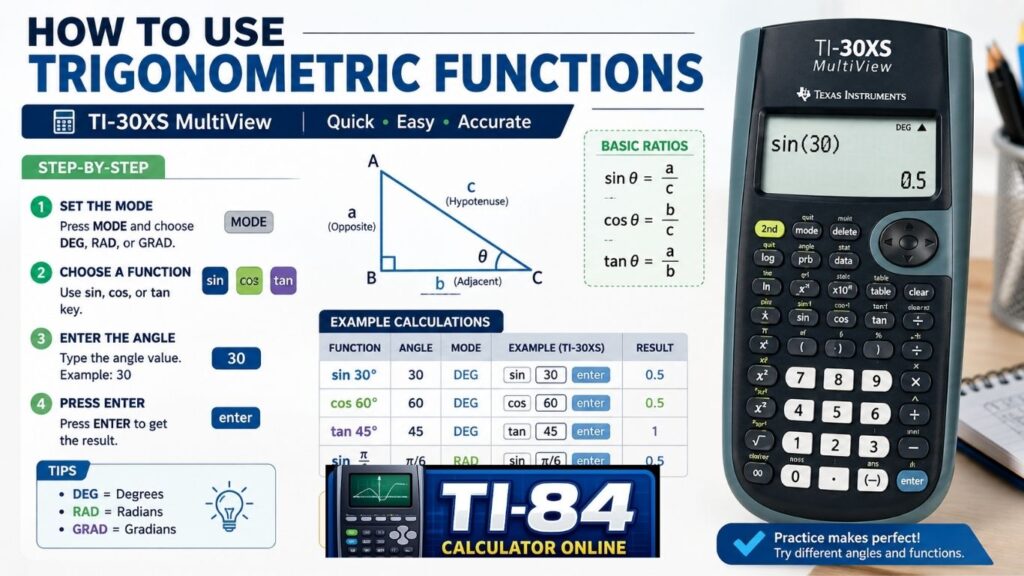
Using the wrong angle mode is one of the most common reasons trigonometry answers come out incorrect.
How to Use Statistics
The TI-30XS supports one-variable and two-variable statistics. Press 2nd, then STAT, and choose either:
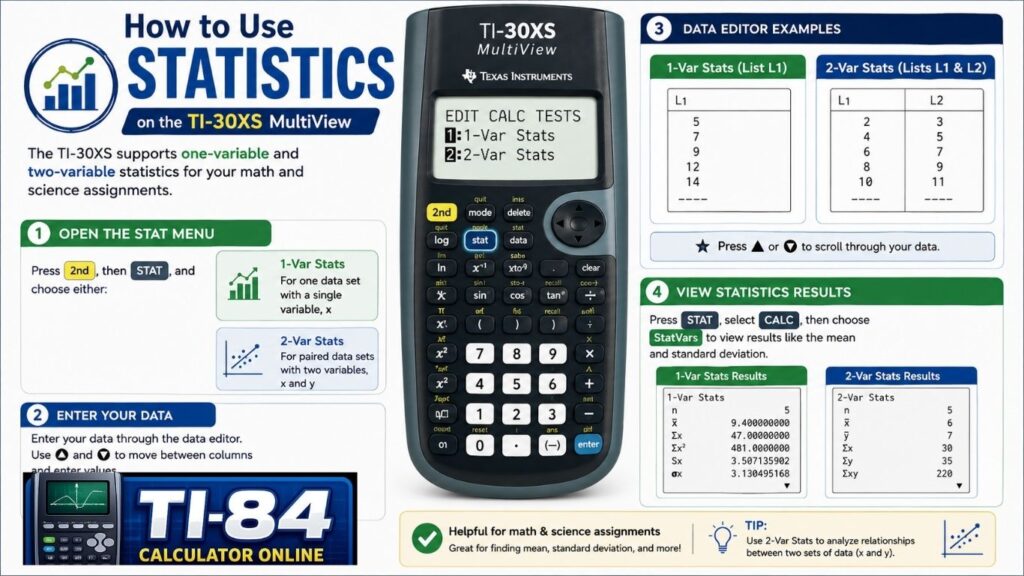
Enter your data through the data editor, then open the StatVars menu to see values like the mean and standard deviation. This is handy for simple data sets in math or science assignments.
How to Use a TI-30XS Calculator Online
If you don’t have the physical calculator with you, our TI-30XS Calculator Online gives you a convenient way to practice the same types of calculations in your browser. It isn’t an official Texas Instruments emulator, but it’s a quick way to check homework or get comfortable with the layout before an exam.
If you’re also curious about graphing calculators, our TI-84 simulator works the same way for TI-84 practice.
How to Practice With a TI-30XS Calculator
- Redo old homework problems using the calculator instead of by hand.
- Time yourself solving a few problems to build speed.
- Practice switching between fraction and decimal answers with the Answer Toggle.
- Try trigonometric functions in both degree mode and radian mode.
If your class also uses a TI-84, our guide on how to use a TI-84 calculator covers similar step-by-step basics for that model.
Common TI-30XS Beginner Mistakes
- Forgetting to switch angle mode before a trigonometry problem
- Not using parentheses in longer expressions
- Clearing the whole screen instead of using DEL for one mistake
- Forgetting to press the right arrow key to exit a fraction or scientific notation template
- Confusing the x10ⁿ key with an EE key from a different calculator
Frequently Asked Questions
Frequently Asked Questions
Use MathPrint mode for everyday calculations. For trigonometry, make sure the angle mode is correct: DEG, RAD, or GRAD.
The TI-30XS can handle fractions, decimals, exponents, square roots, scientific notation, trigonometry, and 1-Var and 2-Var statistics.
Turn it on, check the mode, enter your calculation, and press ENTER. Use the arrow keys to edit entries and Answer Toggle to switch between fraction and decimal forms.
Common keys include ENTER to calculate, CLEAR to clear the screen, DEL to delete an entry, 2nd for secondary functions, Ans for your previous answer, and n/d for fractions.
Press the n/d key, enter the numerator and denominator, and press ENTER. The calculator can simplify fractions and display mixed numbers.
Press 2nd → STAT, choose 1-Var Stats or 2-Var Stats, and enter your data. Use the StatVars menu to view results such as the mean and standard deviation.
No. The TI-30XS is a scientific calculator, not a graphing calculator. It supports functions such as fractions, trigonometry, exponents, scientific notation, and statistics.
No. The TI-30XS MultiView and TI-30XIIS are different calculator models with different displays and features.
Check the current College Board SAT calculator policy before test day, because approved calculator rules can change.
The TI-30XS is designed for scientific calculations rather than programmable games. It does not offer the game and programming features found on many graphing calculators.
Final Thoughts
The TI-30XS calculator looks intimidating at first, but once you understand its buttons and functions, it becomes a reliable tool for everyday math. Practice a little each day, and you’ll be solving fractions, exponents, and trigonometry problems with confidence.
Ready to put these steps into action? Try the TI-30XS Calculator Online now and work through a few practice problems using this guide.