
TI-84 Plus CE Online Emulator: How to Use It Free Without Downloading Anything
No TI-84 Plus CE on hand? An emulator lets you use one on your computer, with the same graphing, equation-solving, and statistics tools. The official TI web version costs $20 a year, while CEmu, a free desktop emulator for Windows, macOS, and Linux, is the best no-cost option. This guide covers how each works, what you can do with them, and which one suits you.
Quick Take: Want a browser version? TI’s official web emulator costs $20/year. Want it free? Use CEmu on desktop.
WHAT IS A TI-84 PLUS CE ONLINE EMULATOR?
Before we dive into the details, let’s make sure we understand what an emulator actually is.
A TI-84 Plus CE online emulator is a digital version of the TI-84 Plus CE graphing calculator that runs on your computer, tablet, or phone. It looks and works exactly like the real thing, but you use your keyboard and mouse instead of physical buttons.
The TI-84 Plus CE is one of the most popular graphing calculators made by Texas Instruments. It is widely used in middle school, high school, and college math and science classes. It is also approved for standardized tests like the SAT and ACT.
In simple terms, it works as a virtual graphing calculator that reproduces the functionality of a physical Texas Instruments calculator on your computer, tablet, or smartphone. An emulator gives you access to all of these features without needing the physical device.
WHY DO STUDENTS USE TI-84 EMULATORS?
There are several great reasons why students and teachers turn to an online graphing calculator for students:
- The real calculator costs around $100–$130; an emulator is completely free
- You can use it on your laptop during online classes or remote learning
- It is always available, even if you forget your calculator at home
- Teachers use it on a projector screen to show students how to use the calculator
- You can practice at home and then use the real calculator on test day
- Some emulators let you save your work and come back to it later
- Many students use a calculator emulator for SAT practice to build confidence before standardized tests
BEST TI-84 PLUS CE ONLINE EMULATOR OPTIONS (FREE)
There are several good options available today. Some run directly in your browser, while others require a small download. Let’s look at the most popular ones.
1. jsTIfied: Best TI-84 Browser Emulator for Older Models
jsTIfied is a completely free TI-84 emulator browser tool that runs right inside your web browser with no download required at all. It was created by the developer community at Cemetech and works with most modern browsers, including Chrome, Firefox, and Edge.
IMPORTANT: jsTIfied supports the TI-83 Plus, TI-83 Plus Silver Edition, TI-84 Plus, and TI-84 Plus Silver Edition. It does NOT currently support the TI-84 Plus CE model. If you specifically need TI-84 Plus CE emulation, use CEmu (see option 3 below). jsTIfied remains an excellent choice for students who own or need to emulate the older TI-84 Plus or TI-83 Plus models.
Here is what makes jsTIfied great:
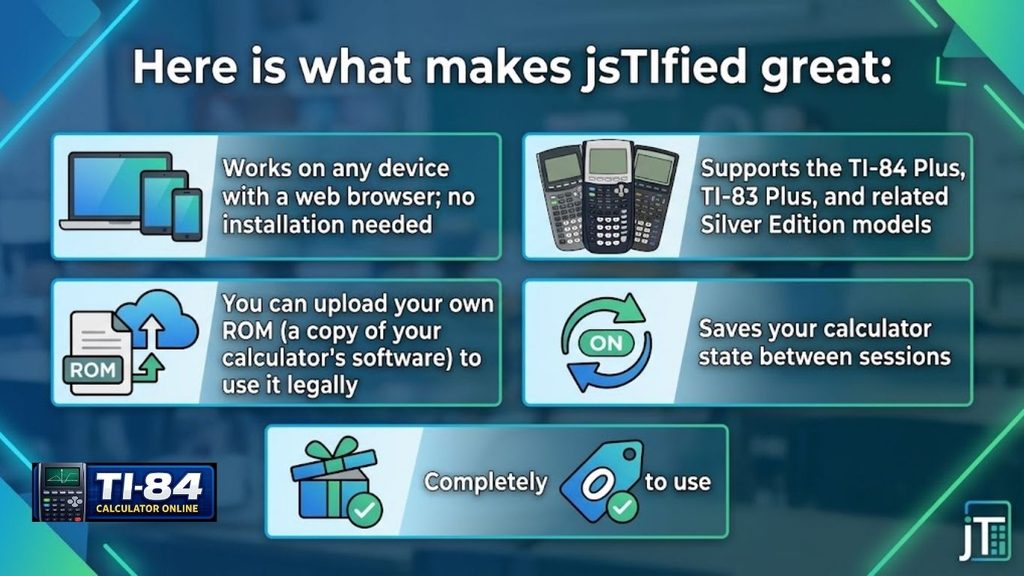
Legal Note: To use jsTIfied legally, you should own a real TI-84 Plus and transfer the ROM from your own calculator using TI Connect CE software from Texas Instruments. Using ROMs you downloaded from the internet may violate Texas Instruments’ terms of service.
2. Wabbitemu Best TI-84 Emulator for Desktop
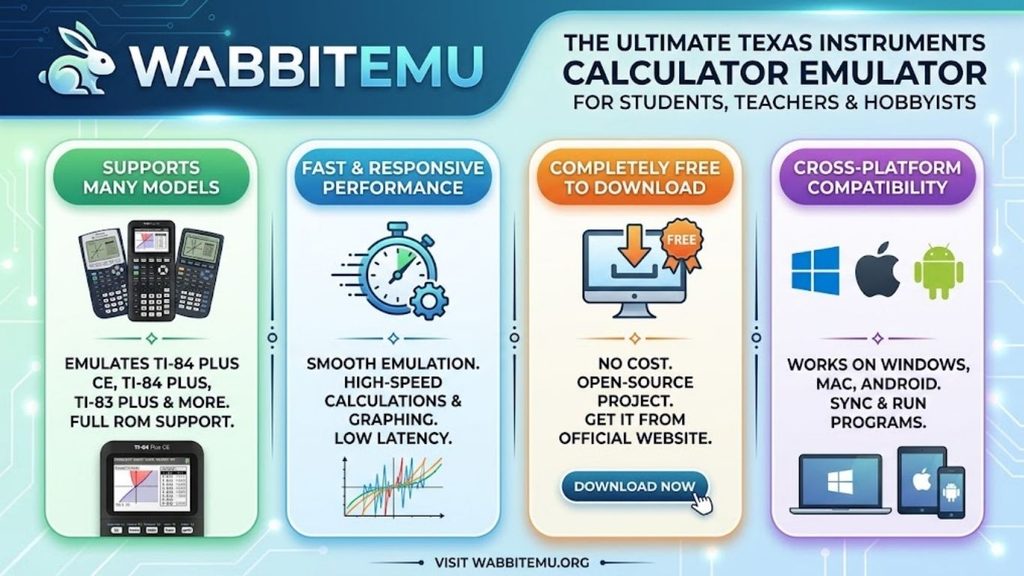
Wabbitemu is one of the most well-known TI-84 emulator programs available. It is a free download that works on Windows, Mac, and Android. While it is not a purely online tool, many students prefer it because it is fast, accurate, and very close to the real calculator experience.
Key features of Wabbitemu include:
3. CEmu: The Best TI-84 Plus CE Emulator for Advanced Users
CEmu is specifically built for the TI-84 Plus CE and TI-83 Premium CE calculators. It is the most accurate graphing calculator software currently available for the TI-84 Plus CE platform and is especially popular among students who want to run TI-84 Plus CE Python programs or develop their own apps. If you need a TI-84 emulator browser experience for the CE model specifically, CEmu is your best desktop option.
What makes CEmu stand out:
- Designed specifically for the TI-84 Plus CE, the only emulator with full CE support
- Excellent support for TI-84 Plus CE Python online features
- Supports TI-84 Plus CE app downloads and installation
- Available for Windows, macOS, and Linux
- Great for programming, app development, and testing
4. TI-84 Plus CE Online Calculator Official Texas Instruments Option
Texas Instruments offers its own official TI-84 Plus CE online calculator at a flat rate of $20 per year, less than $2 per month. This is a fully licensed, browser-based graphing calculator online tool that mirrors the real device exactly.
It is ideal for schools and districts that want every student to have consistent access, and is available for both individual and volume school pricing. Teachers also use TI-SmartView CE emulator software for classroom projection. Always check the Texas Instruments website at education.ti.com for the latest availability and pricing.
Table of Contents
NEW IN 2026: THE TI-84 EVO GRAPHING CALCULATOR
Texas Instruments launched the TI-84 Evo Graphing Calculator on April 28, 2026, the most advanced TI-84 ever built. While this guide focuses on emulators, you should know about this new model if you are considering buying a physical calculator.
The TI-84 Evo features a 3x faster processor (156 MHz vs. 48 MHz on the TI-84 Plus CE), 50% more graphing space, a redesigned keypad, USB-C charging, icon-based menus, and built-in Python programming support. It is approved for ACT, SAT, IB, and AP exams. Pre-order pricing started around $130.
Emulator support for the TI-84 Evo isn’t available yet. For now, Cemu remains the best option for TI-84 Plus CE emulation.
HOW TO USE THE STEPS
Using a TI-84 Plus CE online emulator is not as complicated as it sounds. Here is a simple step-by-step guide to get you started with CEmu, which is the recommended emulator for the TI-84 Plus CE model.
Step 1: Get Your ROM File
First, you need a ROM file. This is the software that makes the emulator work like a real TI-84 Plus CE. The legal way to get one is to copy it from your own calculator using TI Connect CE software from Texas Instruments.
Step 2: Download and Open CEmu
- Go to the Cemu official website and download the version for your operating system (Windows, macOS, or Linux).
- Open CEmu and follow the setup wizard.
- When prompted, load the ROM file you saved from your real TI-84 Plus CE.
- The TI-84 Plus CE online emulator will launch and look exactly like your real calculator.
Note: If you need a browser-based experience and own a TI-84 Plus (not CE), you can use jsTIfied instead; simply go to the jsTIfied website, click to load a ROM, and upload your file.
Step 3: Start Using Your Calculator
Once the emulator loads, you can start using it right away. Click the on-screen buttons with your mouse, or use your keyboard for input. Here are some quick tips:
- Press the Y= button to enter graph equations
- Use the MATH menu for advanced functions like fractions and square roots
- Press 2nd + MODE to quit and return to the home screen
- Use the STAT button to enter data for statistics problems
- Press TRACE after graphing to see exact values on the curve
TI-84 PLUS CE PYTHON: WHAT YOU NEED TO KNOW
One of the most exciting features of the newer TI-84 Plus CE models is Python support. The TI-84 Plus CE Python edition comes with a built-in Python programming environment, which lets students write and run real Python code directly on the calculator.
This is a huge deal for students learning to code because they can practice Python programming using the same device they already use for math class.
What Is TI-84 Plus CE Python Online?
If you want to practice Python programming through a TI-84 Plus CE online emulator, CEmu is currently the best option. It accurately emulates the Python shell and lets you write Python scripts just like you would on the real device.
With TI-84 Plus CE Python online (via an emulator), you can:
- Write and run Python programs using the TI-84’s Python app
- Practice coding for the computer science class without owning the Python edition
- Test Python scripts before loading them onto a real calculator
- Learn basic programming concepts like loops, variables, and functions
How to Access Python on the TI-84 Plus CE Emulator
1. Make sure you are using CEmu with a TI-84 Plus CE ROM that includes the Python app.

2. From the home screen, press the APPS button.
3. Scroll down and select the Python app.
4. Press Enter to open the Python shell.
5. Start writing your code and press F5 or the equivalent key to run it.
Pro Tip: Not all ROM versions include Python. Make sure your TI-84 Plus CE has the latest OS from Texas Instruments, which includes the Python update.
TI-84 PLUS CE APPS DOWNLOAD: ADDING APPS TO YOUR EMULATOR
One of the biggest advantages of the TI-84 Plus CE is its ability to run apps. These are small programs that add extra features to your calculator, like periodic tables, physics formulas, or extra math tools. The good news is that you can also install these apps on your TI-84 Plus CE online emulator.
Popular TI-84 Plus CE Apps You Can Download:
Periodic Table App: great for chemistry students
Cabri Jr: a geometry tool for drawing and analyzing shapes
PlySmlt2: a polynomial root finder and simultaneous equation solver
SciTools: a collection of science reference tools
Inequality Graphing App: for graphing systems of inequalities
Finance App: for business math and financial calculations
How to Add Apps to Your Emulator:
1. Download the .8xk app file from the Texas Instruments official website (education.ti.com). This is completely free and legal.
2. Open your emulator (CEmu or Wabbitemu).
3. Look for an option like “Send File” or “Load File” in the emulator menu.
4. Select the .xkk file you downloaded.
5. The app will install automatically and appear in your APPS menu.
IS IT LEGAL TO USE A TI-84 EMULATOR?
This is a question many students ask, and it is a fair one. The short answer is it depends on where you get the ROM. Using an emulator program itself (like Wabbitemu, CEmu, or jsTIfied) is completely legal. These programs do not contain any Texas Instruments software on their own. The ROM file is the key issue.
Legal Ways to Use a TI-84 Plus CE Online Emulator:
- Copy the ROM from your own calculator using TI Connect CE. This is legal because you own the device
- Use Texas Instruments’ own official online calculator at education.ti.com ($20/year)
- Use the emulators provided directly by Texas Instruments for educational use
What to Avoid:
- Downloading ROM files from unofficial websites likely violates Texas Instruments’ copyright
- Sharing ROM files with friends who do not own the calculator
- Using emulators during tests unless your teacher explicitly allows it
CAN YOU USE A TI-84 EMULATOR ON A TEST?
This depends entirely on the test rules. Here is a quick breakdown:
Standardized Tests:
SAT (Digital): The current Digital SAT (Bluebook app) includes a built-in Desmos graphing calculator for the entire math section, so every student already has a free online graphing calculator for students built into the test. You may also bring an approved physical calculator.
The TI-84 Plus CE is approved. However, as of August 2025, calculators with CAS (Computer Algebra System) functionality are no longer permitted on the SAT or any test in the SAT Suite. The TI-84 Plus CE is non-CAS and remains fully approved. Emulator apps and phone-based calculators are still not allowed.
ACT: Physical calculators only. Emulators are not allowed.
AP Exams: Physical calculators only for sections that require them.
STAAR: Texas state rules apply. Check with your teacher or school before assuming.
Classroom Tests:
For regular classroom tests, it completely depends on your teacher’s rules. Some teachers allow laptops and online calculators, while others require physical devices. Always ask your teacher before using any emulator on a classroom test.
Bottom line: Use the emulator for studying and homework. On official standardized tests, bring your real TI-84 Plus CE.
WHY TRUST THIS GUIDE?
This guide is based on information from official Texas Instruments resources, emulator developer documentation, College Board calculator policy pages, and educational technology references. Every recommendation in this article focuses on legal, safe, and student-friendly methods for using a TI-84 Plus CE online emulator.
For the most up-to-date information, readers should consult:
- Texas Instruments Official Documentation (education.ti.com)
- TI Connect CE Software Resources
- CEmu Project Documentation
- Wabbitemu Official Resources
- College Board SAT Calculator Policy (satsuite.collegeboard.org)
This article is reviewed regularly to ensure accuracy and reflect the latest developments in TI-84 Plus CE emulator software, Python support, and exam policies.
FAQs
Is there a free TI-84 Plus CE online emulator with no download?
Where can I download a TI-84 Plus CE emulator?
Can I use a TI-84 Plus CE Python emulator?
Can I run TI-84 Plus CE apps in an emulator?
Is a TI-84 Plus CE emulator accurate?
Can I use a TI-84 emulator in a browser?
What is the difference between a TI-84 Plus CE and TI-84 Plus CE Python?
What can I do with a TI-84 Plus CE online calculator?
CONCLUSION
Beyond graphing equations, a TI-84 Plus CE online emulator can function as an algebra calculator, a statistics calculator, and a problem-solving tool for STEM learning. Many students use these emulators as part of modern math education technology and as a graphing calculator online solution for engineering students, physics learners, and advanced mathematics courses.
A TI-84 Plus CE online emulator is one of the most useful free tools any math or science student can have. Whether you forgot your calculator at school, want to practice Python coding, or just need an online graphing calculator for students to graph equations quickly, an emulator gives you full access to everything the TI-84 Plus CE can do, completely free.
Last reviewed: June 2026. Emulator availability, operating system compatibility, Texas Instruments software policies, and exam calculator rules can change over time. Always verify the latest information from official sources before downloading software or creating ROM images.
QUICK SUMMARY
- A TI-84 Plus CE online emulator lets you use a virtual graphing calculator in your browser or on your desktop
- jsTIfied supports TI-84 Plus and TI-83 Plus models (browser, no download); CEmu is the correct choice for TI-84 Plus CE emulation
- Wabbitemu is a top free desktop download supporting the TI-84 Plus CE on Windows, Mac, and Android
- You can run Python code using CEmu, making it great for TI-84 Plus CE Python online practice
- TI-84 Plus CE app downloads are easy and free through Texas Instruments’ official website
- Always use a legal ROM copied from your own calculator
- The Digital SAT now includes a built-in Desmos calculator; physical TI-84 CE is still allowed, but CAS calculators are banned as of August 2025
- The new TI-84 Evo (April 2026) is the latest TI-84 model; emulator support not yet available
- Do not use emulators during official standardized tests; save them for studying
The best time to start practicing is right now. Download CEmu, load your ROM, and start exploring everything your TI-84 Plus CE can do. The more comfortable you get with it at home, the more confident you will feel on test day.



2 Comments