How to Do Regression on a TI-84: Complete 2026 Tutorial
Ever plugged a bunch of numbers into your TI-84 and had no idea what to do next? You’re not alone. Regression is one of those topics that sound complicated in a textbook but turn out to be pretty manageable once you know which buttons to press. If you’ve been searching for how to do regression on a TI-84, this guide breaks it down in a way that actually makes sense, no confusing math jargon needed.
Here’s the short version of what’s coming. You’ll learn how to type your data into the calculator, run a linear regression, read the equation it spits out, and turn that equation into an actual graph you can look at. Along the way, we’ll also cover how to check r², what to do if your calculator won’t show you the correlation coefficient, and a few other regression types in case your data doesn’t follow a straight line.
This guide focuses mostly on linear regression since that’s what most students and teachers use day-to-day, but it also touches on quadratic, cubic, exponential, and sinusoidal models for anyone dealing with curvier data. If you don’t have a physical calculator on hand, you can follow along using our free online TI-84 calculator instead. By the end, you’ll be able to enter numbers, calculate, graph, and even predict new values without second-guessing yourself.
How to Do Linear Regression on a TI-84
This section covers the basics of how to do regression on a TI-84 using the linear model, since it’s the most common starting point for beginners.
Linear regression is the most common type that students use. It fits a straight line through your data points using the least squares regression method. Here’s how to run it on your TI-84 graphing calculator, based on Texas Instruments’ official linear regression procedure.
Enter Data in L1 and L2
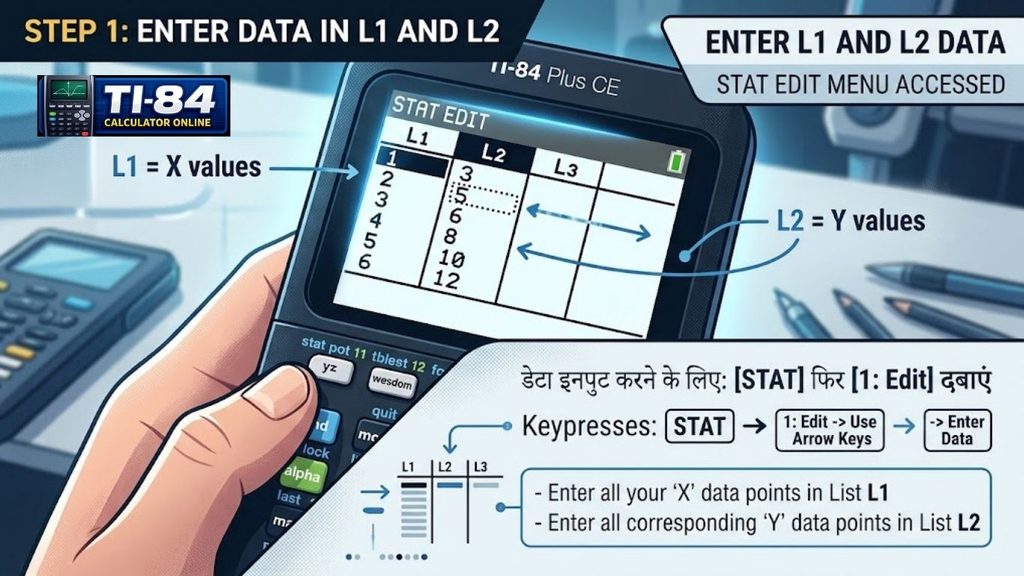
- Press STAT, then choose 1: Edit to open STAT EDIT.
- Type your x-values into the L1 list and your matching y-values into the L2 list.
- Press ENTER after each number so the values line up correctly as paired data.
Double-check that each x-value in L1 matches its correct y-value in L2. A mismatch here throws off the entire regression equation.
Run LinReg(ax+b)
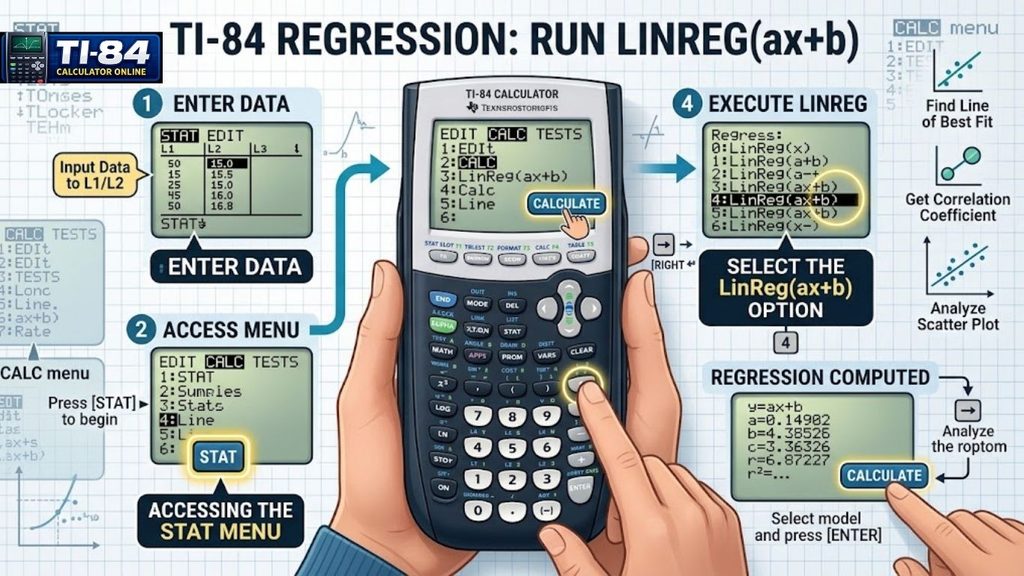
- Press STAT again, then press the right arrow to the CALC menu.
- Scroll down and select 4: LinReg(ax + b.
- Make sure the X-list is set to L1 and the Y-list is set to L2.
- To automatically store the equation, go to VARS, then Y-VARS, then Function, and choose Y1 as the Store RegEQ option.
- Scroll to Calculate and press ENTER.
Read the Regression Equation
Once you calculate, the calculator displays the equation in the form y = ax + b. Here, “a” is the slope and “b” is the y-intercept. Depending on your TI-84 model, the results screen may display the equivalent form y = a + bx while listing the same slope and intercept coefficients; the underlying math is identical either way. This is your TI-84 regression equation, and it tells you exactly how your data behaves in a straight-line pattern.
If you’d rather store and reuse formulas like this one across different problems, our guide to programming formulas into the TI-84 Plus CE covers that in more depth.
Find the Correlation Coefficient and R²
If your calculator does not display r and r² after running the regression, check the STAT DIAGNOSTICS setting. On TI-84 Plus CE models, press MODE, find STAT DIAGNOSTICS, and set it to ON. On TI-84 Plus-family models that use the CATALOG command, press 2ND, then 0 to open CATALOG, select DiagnosticOn, and press ENTER twice.
On the TI-84 Evo, STAT DIAGNOSTICS is set to ON by default, so r and r² normally appear automatically for regression models that report them, according to TI’s official Evo mode settings guide.
After enabling diagnostics where needed, run LinReg(ax+b) again to see r and r² on screen, giving you a clear picture of how well the line fits your data.
A quick note on r² vs R²: These aren’t the same thing, even though they look similar. Lowercase r² comes from the correlation coefficient (r) and applies to LinReg(ax+b), LinReg(a+bx), ExpReg, PwrReg, and LnReg. Capital R² is used for QuadReg, CubicReg, and QuartReg, since these curves don’t have a single correlation coefficient the way straight lines do. Both values describe how closely the model accounts for variation in the data, but they are calculated and reported differently depending on the regression model.
Table of Contents
How to Graph a Regression Line on a TI-84
Seeing your data visually makes the pattern much easier to understand. Here’s how to graph a regression line on a TI-84. For a broader look at graphing beyond just regression lines, check out our complete guide to graphing on a TI-84 calculator.
Create a Scatter Plot
- Press 2ND, then Y= to open STAT PLOT.
- Select Plot1 and turn it ON.
- Choose the scatter plot icon and confirm Xlist is L1 and Ylist is L2.
Store the regression equation in Y1
If you already selected Y1 as the Store RegEQ option earlier, this step is done automatically. If not, go back to LinReg(ax+b) and set Store RegEQ to Y1 before calculating again.
Graph the Line of Best Fit
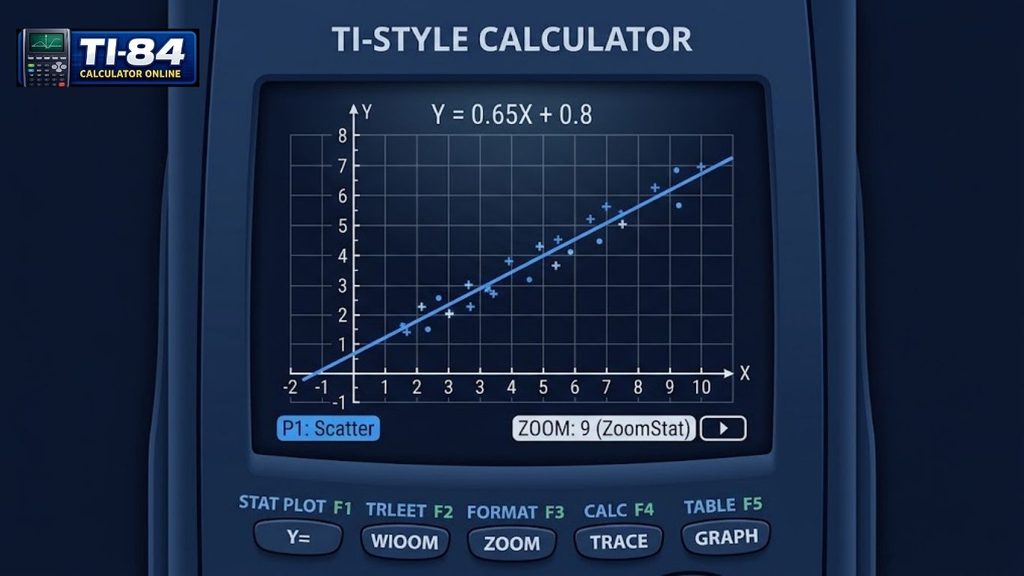
Press ZOOM, then 9: ZoomStat. The calculator automatically adjusts the window so you can see both your scatter plot and the regression line together.
How to Find the Line of Best Fit on a TI-84
The line of best fit is simply the graph of your regression equation. Once you run LinReg(ax+b) and store it in Y1, pressing GRAPH shows this line directly on your scatter plot. It’s the straight line that comes closest to passing through all your data points.
How to Find R² on a TI-84
To find r² on a TI-84, turn on diagnostics as shown above (if your model requires it), then run LinReg(ax+b). The r² value appears below the equation. A value close to 1 means the line fits your data very well. A value close to 0 means the data doesn’t follow a clear linear pattern.
How to Find Residuals on a TI-84
A residual is the difference between an actual y-value in your data and the y-value your regression equation predicts for that same x. After you run any regression, the TI-84 automatically saves these differences to a
- List called RESID, as confirmed in TI’s official residual list documentation.
- To view them: Press STAT, then 1: Edit.
- Move to an empty list column, such as L6.
- Move the cursor to the list name at the top of that column.
- Press 2ND, then LIST to open the list-names menu.
- Select RESID and press ENTER.
The residuals from your most recent regression will then appear in that list, giving you a quick way to check how far off each individual prediction is from the real data point.
How to Store a Regression Equation in a TI-84
Storing your equation lets you graph it and use it for predictions later. During the LinReg(ax+b) setup, scroll to Store RegEQ, press VARS, then Y-VARS, then Function, and select Y1. The equation saves automatically once you calculate.
How to Do Other Types of Regression on a TI-84
Not all data fits a straight line. The TI-84 offers several other regression models under the STAT CALC menu.
Exponential Regression
Use ExpReg when your data grows or shrinks at a constant percentage rate, like population growth.
Quadratic Regression
Use QuadReg when your data forms a curve with one turn, such as the path of a thrown ball.
Cubic Regression
Use CubicReg for data with two turns or a more complex curve.
Sinusoidal Regression
Use SinReg for data that repeats in a wave pattern, such as temperature changes over a year. Note that r and r² are not calculated for SinReg.
How to Use Regression to Make Predictions
Once your regression equation is stored in Y1, you can predict new values. Press 2ND, then TRACE to open the CALC menu, and choose 1: value. Type in an x-value, and the calculator shows the predicted y-value based on your line of best fit. This is one of the most practical parts of regression analysis, since it lets you estimate results beyond your original data.
Common TI-84 Regression Problems and Fixes
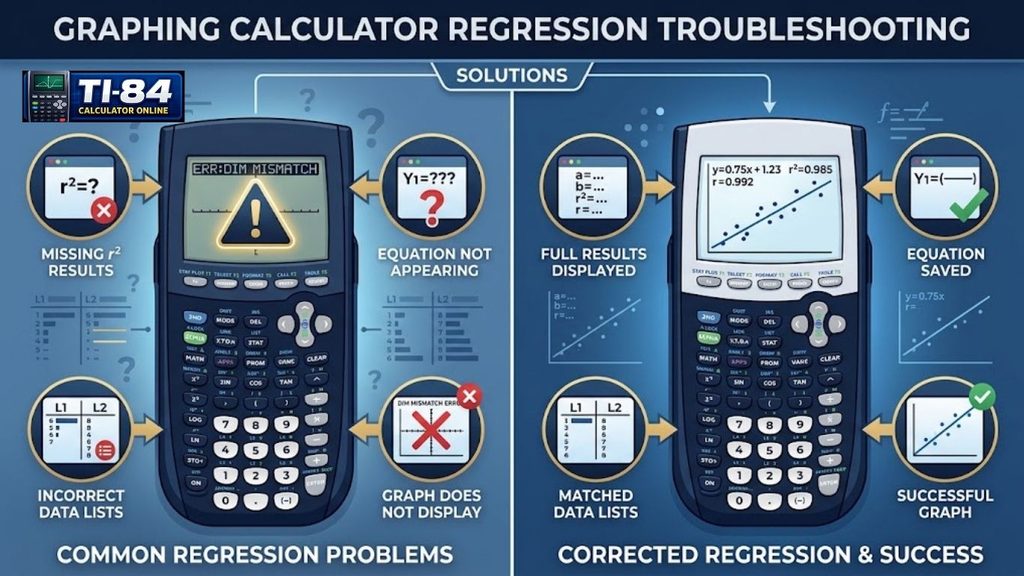
R and R² Are Not Showing
This usually happens because diagnostics are turned off by default on your model. Turn on STAT DIAGNOSTICS through MODE, or use the DiagnosticOn command in CATALOG, then recalculate.
Regression Equation Is Not Appearing
Check that you selected Y1 under Store RegEQ before calculating. If this step is skipped, the equation calculates but doesn’t save anywhere.
Data Is Entered in the Wrong Lists
If your regression looks incorrect, revisit STAT EDIT and confirm your x-values are in L1 and y-values are in L2, matched in the same order.
Regression Line Does Not Graph
Make sure Plot1 is turned on in STAT PLOT and that your equation is stored in Y1. Also, check that Y1 itself is enabled by highlighting the equals sign in the Y= menu. If your calculator keeps behaving unpredictably across several features, not just regression, our TI-84 reset guide can help clear out any settings conflicts.
TI-84 Regression Example
Say you collect data on hours studied (L1) and test scores (L2) for five students. After entering the pairs and running LinReg(ax+b), the calculator might return an equation like y = 5.2x + 60. This means that for every extra hour studied, the predicted score rises by about 5.2 points, starting from a base of 60. With diagnostics on, you’d also see the r² value telling you how strong that relationship really is. This kind of hands-on example is often the fastest way to understand how to do regression on a TI-84 in real classroom situations.
More common questions like these are answered on our TI-84 calculator FAQ page.
Final Thoughts
Regression on a TI-84 might look intimidating the first time, but once you know where each menu lives, it becomes second nature. From entering paired data to graphing the line of best fit and checking r², every step builds toward one goal: understanding the story your data is telling.
If you’re deciding between calculator models before you start, our TI-84 Evo vs TI-84 Plus CE comparison can help you figure out which one fits your needs.
Try running through this guide with your own numbers on your calculator right now. The more you practice, the faster you’ll get at doing regression on a TI-84.
Sources
- Texas Instruments — Linear Regression on the TI-84 Plus family
- Texas Instruments — Linear Regression on the TI-84 Evo
- Texas Instruments — Creating and Viewing a Residual List
- Texas Instruments — STAT Diagnostics on the TI-84 Evo