
How to Solve Equations on a TI-84 Calculator: Step-by-Step Guide
If you have ever stared at an algebra problem and wished your calculator could just do the heavy lifting, you are not alone. The good news is that your TI-84 already has this ability built in. Once you know where to look and how to enter your equation correctly, solving for x, checking a linear equation, or working through a problem with several variables takes only a few button presses.
This guide walks through how to solve equations on a TI-84 calculator using Texas Instruments’ built-in Numeric Solver, along with the graphing screen as a second method. Along the way, you will learn where the solver lives on a TI-84 Plus CE, how it differs on older TI-84 Plus models, how to handle equations with multiple variables, what changes on the Python edition, and how to fix the solver when it will not cooperate. By the end, you will know how to enter equations correctly, choose the variable to solve for, adjust starting values or bounds when needed, and check the result.
What Is the Equation Solver on a TI-84 Calculator?
The TI-84 Plus CE has a dedicated feature, officially called the Numeric Solver, that finds a numeric value for a variable in an equation you type in. It works directly with an equation written as two expressions set equal to each other, then isolates whichever variable you choose using an iterative numerical method rather than algebraic rearrangement.
On the TI-84 Plus CE family, Texas Instruments also includes related tools alongside the Numeric Solver: a Polynomial Root Finder for higher-degree polynomials and a Simultaneous Equation Solver for systems of linear equations. None of these are the same as a Computer Algebra System (CAS), which can rearrange an equation symbolically and display each algebraic step.
The TI-84 line solves numerically and returns a solution value rather than showing the algebraic steps. You can check the result using the displayed difference between E1 and E2.
Where Is the Equation Solver on a TI-84 Plus CE?
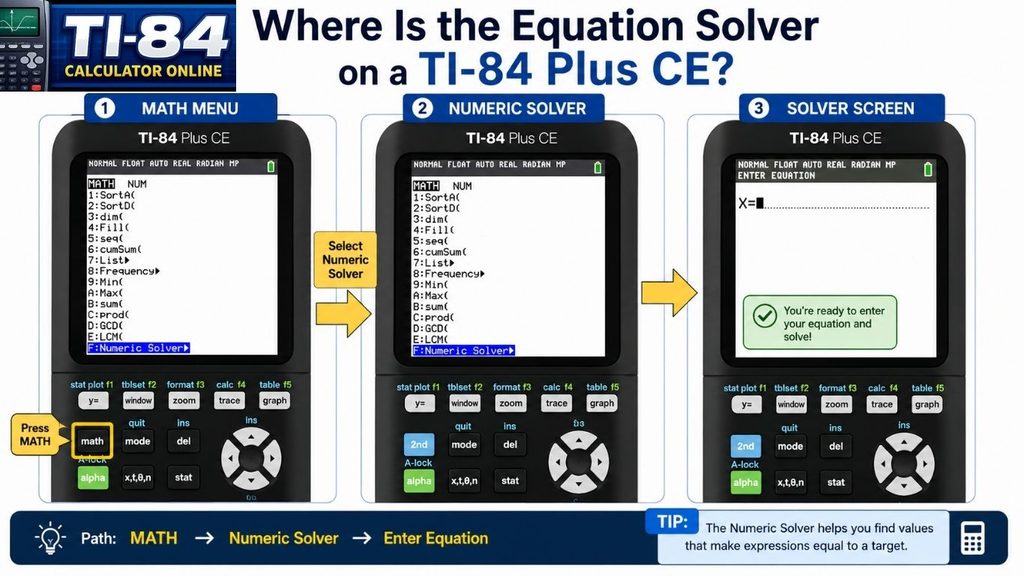
Finding the solver is the first hurdle for a lot of students, since it is not labeled “Solver” in an obvious spot on the keypad. Here is where it lives:Press MATH, then press ALPHA followed by the B key (this jumps straight to B:Solver), or press MATH and scroll down manually until you reach Numeric Solver. Either way, press ENTER to open the solver screen.
Once you are inside, the calculator shows two entry boxes, labeled E1 and E2, representing the left and right sides of your equation. If you have used an older, non-CE TI-84 Plus, the menu path is nearly identical, but the entry format is different. More on that below. This exact workflow is documented directly in Texas Instruments’ official Numeric Solver knowledge-base article.
How to Solve Equations on a TI-84 Calculator
Now that you know where the tool lives, here is the full process for how to solve equations on a TI-84 calculator using the Numeric Solver in MathPrint mode, which is the default on the TI-84 Plus CE.

1: Open the Solver
Press MATH, then ALPHA, then B (or scroll to Numeric Solver), and press ENTER.
2: Enter Your Equation Across E1 and E2
Type the left side of your equation into the E1 box, then press ENTER or the down arrow to move to E2, and type the right side there. For example, to solve 2X + 6 = 10, you would enter “2X + 6” in E1 and “10” in E2. In MathPrint mode, the TI-84 Plus CE uses separate E1 and E2 boxes. In Classic mode, the Numeric Solver uses the traditional 0= equation format.
3: Solve for the Variable
Use the arrow keys to highlight the variable you want to solve for (X, by default, if that is the only unknown). Press ALPHA, then ENTER, to activate the SOLVE command. The calculator will compute and display the value of the variable.
4: Read the Result
A small solid square appears next to the variable you solved for, confirming a solution was found. You will also see a value labeled E1 – E2 near the bottom of the screen, which should read at or very close to zero, confirming the two sides of your equation balance out at that solution.
5: Adjust the Bounds if Needed
If your equation has more than one valid solution, or the solver returns an error, you can edit the bound field before solving. This tells the calculator the interval to search within, which is especially useful for equations like quadratics that can have two different roots, as confirmed in Texas Instruments’ guide to solving quadratics with the Numeric Solver.
If you would rather practice this sequence without your physical calculator in hand, the free TI-84 online simulator mirrors the same menus and key presses described above.
Table of Contents
Older TI-84 Plus vs. TI-84 Plus CE: A Key Difference
If you are working from an older, non-CE TI-84 Plus, the solver looks and behaves a little differently. Instead of two separate E1 and E2 boxes, the older Solver screen expects your equation already set equal to zero, shown on the calculator as “eqn: 0=”. To solve 4X – 8 = 0, for instance, you would enter the full expression after the zero, and the calculator solves for X directly from there.
Texas Instruments documents this older format in its Numeric Solver guide for the TI-84 Plus and TI-83 Plus. If your class material or an older tutorial references this single-line “0=” format, that is the older TI-84 Plus behavior, not the CE’s E1/E2 layout.
How to Solve Equations on a TI-84 Plus CE With Multiple Variables
The Numeric Solver can work with equations containing multiple variables, but it solves for one selected variable at a time. You need to supply values for every other variable before it can find the one you have highlighted.
Say you are working with the formula for the area of a trapezoid, A = 0.5 × (B + C) × H, where B and C are the two base lengths and H is the height. On the calculator, use single letters for each variable, since the TI-84 does not support subscripted variable names like b1 or b2. Enter the formula into E1 and E2 (for example, E1: A, E2: 0.5(B+C)H), using the ALPHA key to type each letter.
Once entered, the solver screen will list A, B, C, and H on separate lines. Fill in the known numbers for A, B, and C, move the cursor down to H, and press ALPHA, then ENTER, to solve. The calculator solves for whichever line the cursor sits on, so double-check that your cursor is parked on the correct variable first.
This same approach works for any formula with multiple unknowns, whether it comes from a chemistry class, a finance course, or a geometry textbook, as long as you know hdv values vh nii but one ovelrfia. If you regularly re-enter the same formulas, it is worth learning how to store formulas directly into your TI-84 Plus CE so you do not have to retype them each time.
How to Solve Linear Equations on a TI-84 Plus CE
Linear equations are often the simplest to solve numerically, especially when they have a unique real solution. You can solve them directly in the Numeric Solver following the steps above, but the TI-84 also offers a second method worth knowing: solving graphically.
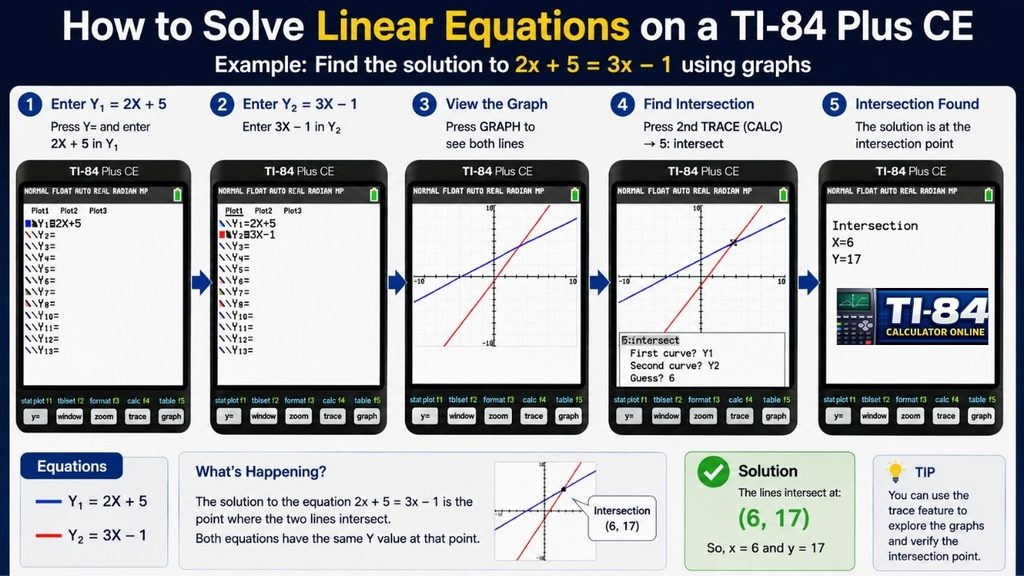
To solve a linear equation graphically, press the Y= key and enter the left side of the equation as one function and the right side as a second function. For example, for 2X + 5 = 3X – 1, you would enter Y1 = 2X + 5 and Y2 = 3X – 1. Press GRAPH to view both lines, then use the CALC menu (2nd, then TRACE) and select “intersect.”
The calculator will prompt you to confirm each curve and provide a guess, then display the coordinates of the intersection. The x-coordinate at that intersection is your solution. For a deeper walkthrough of the Y= screen and graphing functions in general, see our guide on how to graph on a TI-84 calculator.
This graphical method is a good habit to build, because it reinforces what “solving an equation” actually means visually: finding the point where two expressions have equal value. It also comes in handy for word problems where seeing the two lines helps you interpret the answer.
How to Solve for X on a TI-84 Plus
If your equation is already set up in terms of X, solving for it is often the fastest with the Numeric Solver’s default variable. Enter your equation across E1 and E2, open the Numeric Solver, highlight X, and press ALPHA, then ENTER. For simple linear equations, this typically takes just a few seconds.
For equations that are not linear, such as those involving exponents, square roots, or trigonometric functions, the same process applies, though it helps to enter an initial guess close to the expected answer rather than leaving it at the default of zero. This narrows the search interval and helps the solver land on the intended real solution rather than a mathematically valid but less useful one.
Numeric Solver on TI-84 Plus CE Not Working: Common Fixes
A handful of issues come up repeatedly when the Numeric Solver seems to be misbehaving. Here are the most common causes and fixes.
NO SIGN CHANGE” Error
This error means the solver could not locate a solution using your current starting value or search bounds. It usually points to an initial guess that is too far from the actual answer, but it can also happen with equations that have no real solution in the interval you set or with repeated-root equations where the function touches zero without actually crossing it. Try a different initial guess, widen or shift your bounds, or check whether the equation has a real solution at all.
Equation Entered Incorrectly
Missing parentheses are the single most common cause of a wrong answer that still “solves” without an error. If your equation includes a fraction, a multi-term denominator, or an exponent that applies to more than one term, wrap it in parentheses before entering it, since the calculator follows standard order of operations exactly as typed.
Wrong Variable Selected
It is easy to press ALPHA and ENTER while the cursor sits on the wrong line, especially in equations with several variables. Double-check the cursor position before solving, since the calculator solves for whichever variable the cursor is on, not necessarily the one you intended.
Outdated Operating System
As of 2026, Texas Instruments’ current TI-84 Plus CE operating system is version 5.8.5, available through TI Connect CE. You can check and download it directly from Texas Instruments’ official TI-84 Plus CE operating system page. If your Numeric Solver menu or key sequence looks different from what is described here, check your OS version first (2nd, then + for MEM), since older versions can have slightly different menu wording or layouts. For a full walkthrough, see our dedicated TI-84 Plus CE OS update guide. If your calculator is misbehaving in ways an OS update does not fix, our TI-84 reset guide covers the next troubleshooting step.
Solving Equations on the TI-84 Plus CE Python Edition
The TI-84 Plus CE Python edition retains the TI-84 Plus CE’s core calculator and solver features, including the same Numeric Solver described above, while adding a separate Python programming environment on top. Learning Python on this model does not change how the built-in solver works.
That said, students comfortable with Python can also write short scripts to solve equations programmatically, using basic algebraic logic or loops, which is a useful supplement for more complex or repeated calculations. If you want to go further with TI-BASIC scripting on the same calculator, our TI-84 calculator programming guide covers writing and storing your own programs. For most everyday algebra and formula work, though, the built-in Numeric Solver remains the faster option, since it requires no coding at all.
How to Solve Equations Compares on the TI-Nspire CX II
Students switching between calculator models sometimes ask how to solve equations on a TI-Nspire CX II, since the interface looks quite different from a TI-84. The TI-Nspire CX II CAS version includes a Computer Algebra System, which can solve equations symbolically and display the algebraic steps, something the TI-84 line does not do.
On the non-CAS TI-Nspire CX II, equation solving works numerically, similar in spirit to the TI-84’s Numeric Solver, though accessed through the Calculator application using a “solve” command typed directly into the entry line rather than a dedicated solver menu.
If your class or exam specifically requires a TI-84, the Numeric Solver and graphing-intersection methods above will cover the vast majority of equations you will encounter in algebra, geometry, and introductory science courses. If you are still deciding between calculator models, our comparison of the TI-84 Evo vs. TI-84 Plus CE may help.
Frequently Asked Questions
Can the TI-84 solve equations with two variables at once?
The Numeric Solver can work with equations containing multiple variables, but it solves for one selected variable at a time. You need to provide values for every other variable before it can find the missing one.
Does the TI-84 show the steps to solve an equation?
No. The TI-84 line does not include a computer algebra system, so it returns a numeric answer without showing the algebraic steps used to reach it. For step-by-step algebraic work, you would need a CAS-enabled device such as the TI-Nspire CX II CAS.
Why does my TI-84 give a “NO SIGN CHANGE” error?
This typically means your initial guess or search bounds do not contain a real solution, or the equation involves a repeated root the solver cannot detect a sign change around. Try a different initial guess, widen your bounds, or confirm the equation actually has a real solution.
Is the Numeric Solver the same on older TI-84 Plus models as on the CE?
The core solving method is similar, but the entry format is not identical. Older TI-84 Plus and TI-83 Plus models expect equations in “0 =” form, while the TI-84 Plus CE’s MathPrint mode uses two separate E1 and E2 boxes.
Can I solve quadratic equations with the Numeric Solver?
Yes, though since quadratics can have two solutions, you may need to run the solver twice with different initial guesses or bounds to find both roots.
For more on general calculator basics and common questions, see our TI-84 calculator FAQ page.
Final Thoughts
Now that you know how to solve equations on a TI-84 calculator, whether it is a single unknown, a linear equation, or a multi-variable formula, the process becomes quick and repeatable rather than a source of frustration. Between the numeric solver and the graphing-intersection method, you have two reliable ways to double-check your algebra homework or work through formulas for a science class.
If you want to practice without your physical calculator on hand, try the free TI-84 online simulator, which mirrors the same menus and key presses described in this guide, so the muscle memory transfers directly to your actual device.






One Comment