How to Use a TI-84 Calculator: A Step-by-Step Guide for Beginners
To learn how to use a TI-84 calculator, start by pressing the green ON key to turn it on. Use the arrow keys and 2nd/ALPHA keys to access extra functions, type your expression in normal order, and press ENTER to get the answer. Use Y= and GRAPH to plot functions, MATH and Solver to solve equations, and PRGM to write simple TI-BASIC programs.
If you’ve just picked up a TI-84, the button overload is real. Every new student feels it: too many keys, not enough explanation, and no idea where to start. But once you learn where things are, the calculator stops being confusing and starts being useful.
This guide walks you through how to use a TI-84 calculator step by step, from turning it on and learning the buttons to doing basic math, solving equations, graphing functions, and writing a simple program if you want to go further. The basic instructions apply to the TI-84 Plus CE and many other TI-84 models.
No calculator on hand? You can follow along using our free TI-84 calculator online tool, or try the TI-84 calculator without downloading if you’d rather skip installing anything.
Quick Overview
Learning how to use a TI-84 calculator comes down to a few core steps: turn it on, get comfortable with the home screen, learn what the main keys do, and then move on to fractions, equations, and graphing as you need them. Below, we’ll walk through each of these one at a time, starting with the ON key.
How to Use a TI-84 Calculator: Turning It On
If you’re asking, “How do I start my calculator?” the answer is simple. Look at the bottom-left corner of the keypad for the green ON key and press it once. The screen should light up right away.

A few quick notes:
- To turn the calculator off, press 2nd, then ON (the word OFF is printed above the ON key in blue).
- If the screen stays blank, adjust the contrast by pressing 2nd, then the up or down arrow.
- On the TI-84 Plus CE, pressing APPS shows a list of installed applications. On the newer TI-84 Plus CE family’s successor, the TI-84 Evo, apps appear as icons directly on the home screen, giving quicker access to built-in tools without opening the APPS menu.
- If your calculator won’t turn on, it likely needs new batteries or a full charge, depending on your model.
If you’re testing this on a computer instead of a physical unit, our free online TI-84 emulator mirrors these same buttons, so nothing here changes based on which version you’re using.
Table of Contents
Understanding the TI-84 Home Screen
Once the calculator turns on, you’ll land on the home screen. This is where most of your everyday typing happens, so it helps to know what you’re looking at.
- The entry line is where you type numbers and expressions before pressing ENTER
- The cursor is the small blinking line that shows exactly where your next keystroke will appear.
- The calculator keeps a short history of your past entries and answers above the entry line, so you can scroll up with the arrow keys to see what you calculated earlier.
- Pressing CLEAR wipes the current entry line without touching your calculation history.
Getting comfortable with the home screen first makes everything else in this guide, from graphing to programming, much easier to follow.
Basic Buttons and Functions
Before doing any calculations, it helps to know what the main keys do.
⬅️ Arrow Keys
Move the cursor around the screen and navigate through menus.
🔵 2nd Key
Unlocks the blue functions printed above each button.
🟢 ALPHA Key
Unlocks the green letters used for variables and programs.
🧹 CLEAR
Erases what is currently on the screen or in an entry line.
✏️ DEL & INS
Delete existing characters or insert new ones into an expression.
✅ ENTER
Confirms an entry and calculates the final result.
⚙️ MODE
Changes settings such as degrees, radians, MathPrint mode, and answer format.
📦 STO→
Stores a value into a variable for quick reuse, making formulas and repeated calculations much easier.
The Plus or Minus Key
One of the most common questions is how to use the +/- key on a TI-84. This trips up a lot of beginners because there are two different-looking minus signs on the keypad.
- The blue subtraction key (next to the plus key on the right side) is only for subtracting one number from another, like 8 − 3.
- The gray (-) key, found in the bottom row next to ENTER, is the negative sign. Use this one to type a negative number, like −5.
If you mix these up, the calculator will usually show an error. So remember: subtraction uses the top key, and negative numbers use the (-) key near ENTER.
Keep in mind the TI-84 doesn’t have a single ± symbol key. If a problem asks for both the positive and negative answer, such as when using the quadratic formula, you calculate each version separately using the (-) key for the negative case.
Note that if you’re using a simpler scientific calculator instead, like the TI-30XS, the negative sign works the same way, but you won’t have graphing or programming features at all.
How to Perform Calculations
Basic math on the TI-84 works much like using a phone calculator, just with more symbols to learn. Here’s how to use a calculator step by step for everyday problems:
- Type your first number on the entry line
- Press the operation key (+, −, ×, or ÷).
- Type the second number.
- Press ENTER to see the result.
For more advanced entries:
- Use the ^ key for exponents, like 3^2 for 3 squared.
- Use the 2nd then the x² key for square roots.
- Use the LOG and LN keys for common and natural logarithms
- Use SIN, COS, and TAN for trigonometric functions, keeping an eye on whether MODE is set to degrees or radians.
- Very large or very small results display in scientific notation automatically, shown with a small E followed by the exponent, such as 2.5E7.
- Use the ANS key (2nd, then (-)) to reuse the result of your last calculation instead of retyping it
As you get more comfortable, you’ll also lean on the calculator’s memory features to store numbers, formulas, lists, and variables instead of entering them over and over.
How to Enter Fractions on a TI-84
According to Texas Instruments’ own product support documentation, fractions are entered through the FRAC menu, not a dedicated fraction key:
- Press ALPHA, then Y= to open the FRAC menu.
- Choose n/d for a simple fraction or Un/d for a mixed number.
- Type the numerator, press the down arrow, then type the denominator.
- Press the right arrow to exit the template and keep typing, or press ENTER to calculate.
The same menu also lets you convert between fractions and decimals and between improper fractions and mixed numbers. On calculators with MathPrint mode turned on, fractions display stacked, just like they would on paper.
How to Solve Equations
If you’re wondering how to solve on a TI-84 beyond simple arithmetic, the calculator has a built-in numeric equation solver.
To use it:
- Press MATH.
- Scroll down the menu until you see Solver…
- Enter your equation in the form it asks for, usually set equal to zero.
- Move the cursor to the variable you want to solve for.
- Press ALPHA, then ENTER to calculate the solution
Can the TI-84 Solve Quadratic Equations?
Yes. The TI-84 does not have a dedicated “quadratic formula” button, but you can solve quadratics in a couple of ways:
- Use the Solver menu described above, entering the equation set equal to zero.
- Graph the equation using the Y= editor and find where it crosses the x-axis, which represents the real solutions.
- Use the MATRIX menu for systems of equations that involve more than one variable
The MATRIX and STAT menus, along with the list editor used for entering data columns, also support regression analysis, matrix algebra, and more advanced statistical calculations, which is why the TI-84 stays useful well beyond basic algebra.
How to Graph Functions
Graphing mode is one of the TI-84’s most popular features, and it’s simpler than it looks. You can practice these exact steps on our TI-84 graphing calculator online tool or the virtual TI-84 graphing calculator.
- Press Y= to open the function editor
- Type your function next to Y1, such as 2X+3.
- Press GRAPH to display the function on the coordinate plane.
- If the graph doesn’t appear correctly, adjust the window settings using the WINDOW menu, which controls the visible range of the x- and y-axes
- For most beginner examples, choose Zoom Standard from the ZOOM menu to quickly restore a clear viewing area.
- Press TRACE to move along the graph and view the coordinates of any point.
You can also press 2nd, then GRAPH, to open the function table, which lists x- and y-values for your function without needing to read them directly from the graph. This is especially useful when you need precise values for graph analysis or checking your work.
How to Find Intersections on a Graph
To find where two graphed functions cross:
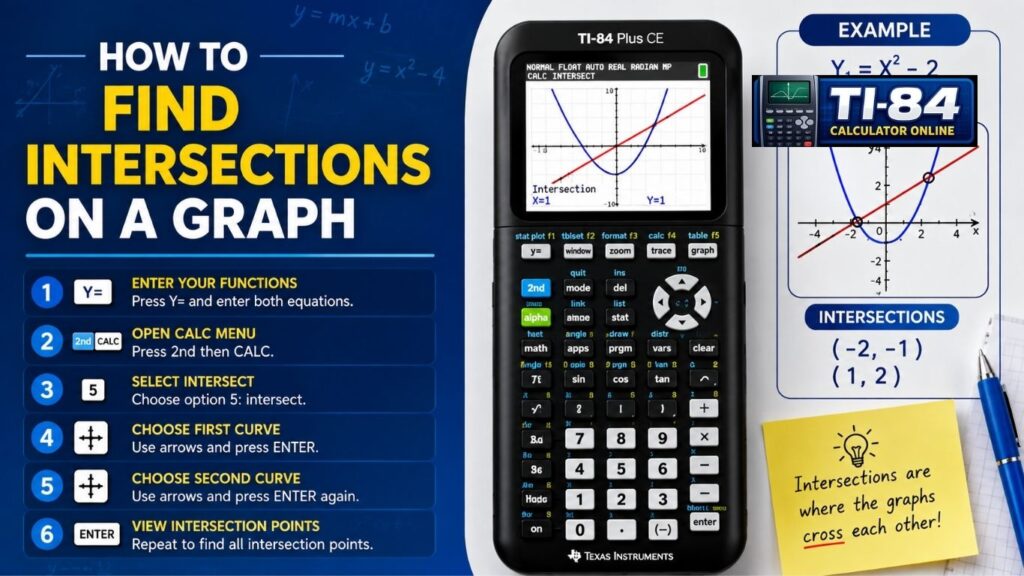
- Enter both functions in the Y= editor
- Press GRAPH so both lines appear
- Press 2nd, then TRACE to open the CALC menu
- Choose intersect
- Use the arrow keys to move near the crossing point when prompted, then press ENTER three times
The calculator will display the exact x and y coordinates of the intersection point.
For a deeper walkthrough with more graphing examples, our full guide on how to graph on a TI-84 calculator covers window settings and multiple functions in detail. If your calculator is acting up before you even get to graphing, our reset guide walks through restoring default settings safely.
How to Use TI-BASIC Programming
A common search is “what coding language does a TI-84 use?” The answer is TI-BASIC, a simple programming language built into every TI-84 model. Models labeled Python Edition, along with the newer TI-84 Evo, also support Python as a second option.
To start a basic TI-BASIC program:
- Press PRGM.
- Arrow over to NEW and press ENTER.
- Type a name for your program using the ALPHA letters.
- Press ENTER to open the program editor.
- Use commands like Disp, Input, and If-Then to build simple logic.
TI-BASIC is a great starting point for beginners because you don’t need any outside software. If you’d rather explore the calculator’s software from a computer first, our TI-84 Plus CE online emulator is a good place to try the PRGM menu risk-free.
Common TI-84 Questions
Turn it on with ON, enter your numbers and operation, such as 8 + 5, and press ENTER to see the result. For more advanced work, use Y= and GRAPH for functions, MATH for math tools, and 2nd or ALPHA for secondary functions.
A TI-84 can handle basic arithmetic, fractions, exponents, square roots, trigonometry, logarithms, statistics, equations, and graphing. It can also create tables, work with matrices, store variables, and run simple TI-BASIC programs.
Use the + and − keys for addition and subtraction. To enter a negative number, use the (-) key near the bottom of the keypad. It is separate from the subtraction key. For example, enter 8 − 3 for subtraction or (-)5 for negative 5.
First, make sure the calculator is turned on and the screen is visible. If it is on but behaving unexpectedly, check MODE, WINDOW, and your current input. Pressing CLEAR can also help. If the calculator is completely frozen, a reset may help, but check what it will erase first.
Check the battery or charge level first. For a TI-84 Plus CE, connect it to a suitable charger and let it charge. If it turns on but the screen is hard to see, adjust the contrast using 2nd and the arrow keys. If it still does not respond, the battery or calculator may need further troubleshooting.
Make sure your function is entered correctly in Y= and turned on. Then press GRAPH and check the WINDOW settings. If the graph is outside the visible area, use ZOOM and select Zoom Standard to restore a normal viewing range. Also check for syntax errors or invalid operations in the function.
Final Thoughts
Learning how to use a TI-84 calculator really comes down to practice. Start with the basics, like turning it on and getting familiar with the home screen, then move on to graphing, equations, and memory management once you’re comfortable. Before long, the buttons that once felt confusing will become second nature.
For more quick answers to specific button and error questions, browse our full TI-84 calculator FAQ. If you want to practice these steps without needing your physical calculator nearby, try our free TI-84 simulator to test buttons, graph functions, and get comfortable before your next test.