
How to Program Formulas Into TI-84 Plus CE (Step-by-Step Guide)
Quick Answer: To program formulas into TI-84 Plus CE, create a new TI-BASIC program, save the formula using variables, and run the program whenever you need quick calculations. Learning how to program formulas into TI-84 Plus CE saves time, reduces manual errors, and makes repeated calculations much easier.
If you type the same equation into your calculator over and over, you are wasting valuable time that could be spent checking your work. Learning how to program formulas into TI-84 Plus CE solves that problem. Once a formula is saved inside a program, you only need to enter your numbers and let the calculator do the rest.
This guide explains the entire process in simple English. You will learn how the TI-BASIC language works, how to create your own formula programs from scratch, and how to fix common coding mistakes. By the end, you will have a library of reusable programs for algebra, geometry, physics, chemistry, and any subject that relies on repeated formulas.
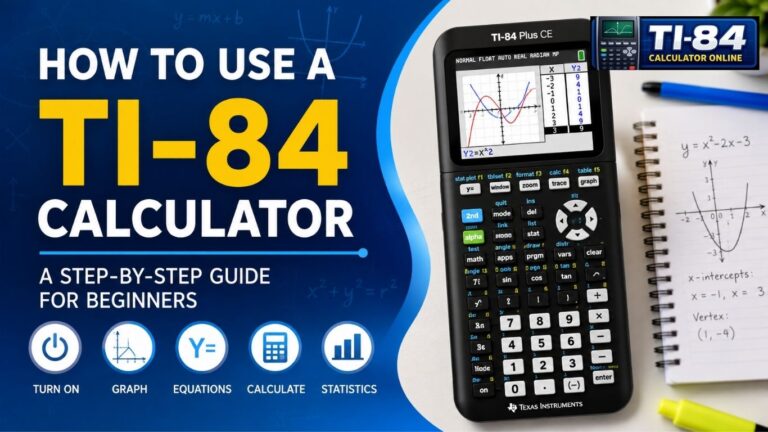
If you are still getting familiar with the calculator, check out our TI-84 Plus CE guide and How to Graph on a TI-84 Calculator tutorial before diving into formula programming. You can also practice directly in your browser with our TI-84 Calculator Online tool. And if you ever need to start fresh, our Reset TI-84 Calculator guide will walk you through the process safely.
Why Program Formulas Into Your TI-84 Plus CE?
Before you learn how to program formulas into the TI-84 Plus CE, it helps to understand why the extra effort is worth it. A graphing calculator like the TI-84 Plus CE is designed to do much more than basic arithmetic.
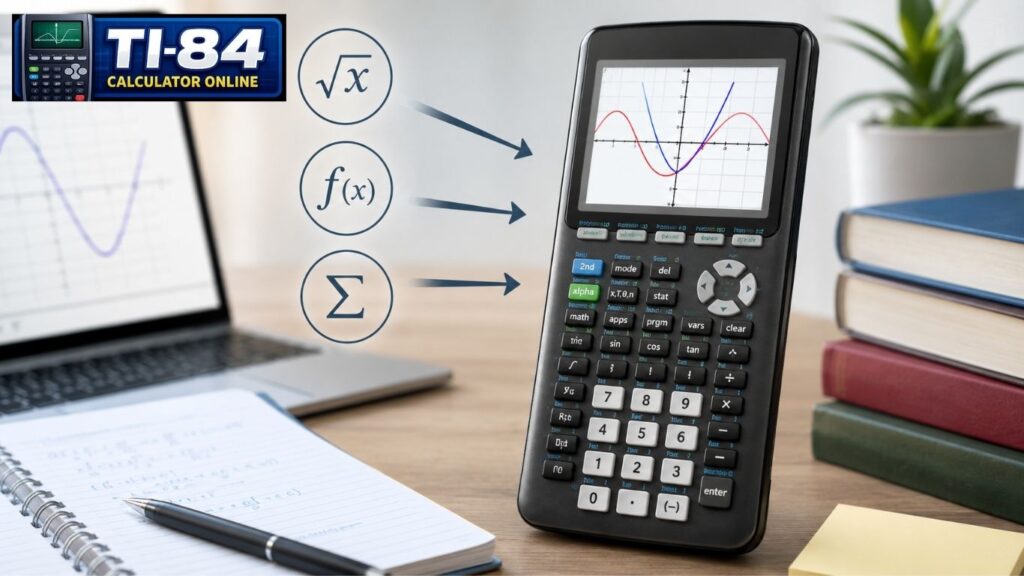
Texas Instruments built the calculator to run small pieces of code, called programs, that can permanently store formulas. Instead of typing a long expression every time you need it, you can enter it once, save it, and reuse it whenever necessary.
This feature is especially useful in classes that involve repetitive calculations. Students studying algebra often use the quadratic formula dozens of times in a single unit, while geometry students rely on the distance and midpoint formulas for coordinate proofs.
Trigonometry courses frequently require the Law of Sines and the Law of Cosines, while calculus and statistics classes introduce their own recurring formulas, including standard deviation calculations for data analysis.
Custom programs are also valuable outside the mathematics classroom. A physics program can store motion and energy equations, a chemistry calculator can handle mole conversions, and engineering students can create programs for stress, load, and circuit calculations.
Many students preparing for SAT Math, ACT Math, AP Calculus, or AP Statistics also create small formula programs to speed up practice sessions. By reducing typing mistakes, these programs allow students to spend more time focusing on solving the actual problem.
What You Need Before You Start
Table of Contents
You do not need any coding background to program formulas into TI-84 Plus CE. TI-BASIC, the built-in programming language on the TI-84 Plus CE, was designed for students, not software engineers. Here is what helps before you begin:
- A TI-84 Plus CE with the latest available operating system, or a TI-84 Plus running its own supported operating system.
- A clear idea of the formula you want to store, written out on paper first
- A few minutes of free time, since your first program only takes about five minutes to build
If you do not have your calculator on hand right now, you can also try these steps on our TI-84 Simulator to get a feel for the Program Editor first. If you are new to graphing calculators, our TI-84 Plus CE guide explains the basic functions and menus.
Understanding TI-BASIC: The Language Behind Your Programs
TI-BASIC is the programming language built into every TI-84 Plus CE, and it is the language you will use whenever you program formulas into it. It uses simple commands rather than complex syntax, which is why it is often the first programming language many students ever learn.
A few terms will come up again and again in this guide:
- Variable: a letter, like X or A, that holds a number you can change
- Constant: a fixed value that does not change, like the number 2 in a formula
- Expression: a math statement such as B squared minus 4AC
- Function: a built-in operation, like square root or logarithm
- Equation: a full formula that sets one expression equal to another
- Command: an instruction the calculator follows, such as “Disp” or “Prompt”
- Loop: a command that repeats a set of steps, such as For or While
- Conditional Statement: a command like “If-Then” that only runs code when something is true
Every program you write is also called source code, and once you save it, it becomes a program file stored in the calculator’s memory. Small programs stay in RAM, while larger ones can be moved to archive storage so they are not accidentally cleared.
How to Program Formulas Into TI-84 Plus CE: Step-by-Step
Here is the exact process for creating a formula program from a blank calculator. In short, the whole workflow looks like this:
Write the formula on paper -> Open the Program Editor -> Name the program. -> Enter the code -> Save and exit -> Run the program
Each of those steps is explained in detail below.
1: Open the Program Editor.
Press the PRGM button. This opens the Program Editor, where every saved program lives. Use the arrow keys to move to the NEW option, then press ENTER, then select Create New.
2: Name Your Program
Type a short name for your program. Names can be up to eight characters long and must start with a letter. For example, if you are building a quadratic formula program, you could name it QUAD. Press ENTER to move into the blank editor screen.
3: Write the Formula Code
This is where you enter the actual commands. Every line usually starts with a colon, which the calculator adds automatically. A basic quadratic formula program looks like this:
PROGRAM:QUAD: Prompt A, B, C: (-B+sqrt(B^2-4AC))/(2A) -> X1: (-B-sqrt(B^2-4AC))/(2A) -> X2: Disp X1, X2
Here is what each line does. The prompt asks for input from the user and stores it in variables A, B, and C. The next two lines calculate the two possible solutions using the quadratic formula and store the results in X1 and X2. Disp displays the output on the home screen. This is the basic pattern behind almost every formula program you will ever write: input, calculation, and output.
4: Save and Exit
Press 2nd then MODE (QUIT) to exit the Program Editor. Your program saves automatically, so there is no separate save button to worry about.
5: Run Your Program
Example Formula Programs You Can Create
Once you understand the basic pattern, you can program formulas into TI-84 Plus CE for almost any subject and build a complete formula library. Here are a few useful examples worth saving.
Distance Formula Program
This program applies the distance formula directly, which connects to the Pythagorean Theorem because it calculates the straight-line distance between two coordinate points.
Slope Formula Program
This is one of the most useful calculator programs for algebra and geometry classes because slope calculations are used in linear equations and graphing.
Compound Interest Formula Program
This program stores the compound interest formula, making it useful for finance courses. You can also adapt it for simple interest by removing the exponent term.
Want to visualize the distance formula? Check out our How to Graph on a TI-84 Calculator guide.
Press PRGM, select your program’s name from the list, and press ENTER twice. The calculator will now prompt you for A, B, and C, then display the answers instantly.
Other math formula programs worth building include an area formula program, a volume formula program, and even permutation formula or combination formula programs for statistics units that cover probability.
The table below summarizes the most useful Try building your first program formulas into a TI-84 Plus CE today on your calculator, or practice first on our TI-84 calculator online tool, and once you are comfortable with the basics, come back and expand your library with programs for trigonometry, statistics, or whatever subject you are tackling next. Covered in this guide, along with their required inputs and common use cases.
| Program Name | Formula | Inputs Needed | Best Used For |
| QUAD | Quadratic Formula | A, B, C | Algebra, solving quadratics |
| DIST | Distance Formula | X1, Y1, X2, Y2 | Geometry, coordinate points |
| SLOPE | Slope Formula | X1, Y1, X2, Y2 | Algebra, linear equation |
| COMPINT | Compound Interest Formula | P, R, N, T | Finance and math applications |
How to Edit an Existing Formula Program
Formulas change, and so should the programs you use to program formulas into the TI-84 Plus CE. To edit one, press PRGM, select EDIT instead of NEW, then choose the program you want to change. This opens the same editor screen you used to write it, with your original code already there.
From here, use the arrow keys to move through the lines, delete anything you want to remove, and type new commands where needed. Exit with 2nd then MODE to save your changes automatically, just like before.
Tips for Organizing Your Formula Library
As you program formulas into TI-84 Plus CE more often, your collection of programs grows, and a little organization saves a lot of frustration. Try these habits:
- Use short, clear names that describe the formula, like SLOPE or DIST, instead of PROG1.
- Group related programs by subject, such as naming physics programs with a P prefix.
- Archive programs you use rarely to protect them from being cleared during a RAM reset
- Keep a written list of program names and what each one calculates, since the calculator only shows names, not descriptions.
Before clearing your calculator’s memory, read our Reset TI-84 Calculator guide to avoid losing your saved programs.
Common Errors and How to Fix Them (Debugging)
Debugging is a normal part of learning to program formulas into the TI-84 Plus CE, even for a short program. Here are the errors students run into most often:
- ERR: SYNTAX usually means a missing parenthesis or an extra character somewhere in your expression. Check every line for matching parentheses.
- ERR: DOMAIN often appears when a formula tries to take the square root of a negative number, which can happen if a quadratic has no real solutions.
- ERR: UNDEFINED means the program is trying to use a variable that was never given a value. Double-check that every variable used in a calculation was set with “Prompt” or “Input” first.
When the calculator flags an error, it usually jumps straight to the line causing the problem, which makes fixing your source code much faster than it sounds.
Using TI Connect CE to Write Programs on a Computer
If typing on the calculator’s keypad feels slow, TI Connect CE lets you write and transfer programs from a computer instead. This free software from Texas Instruments connects to your calculator with a USB cable and includes a program editor with a full keyboard, which is much faster for longer formula programs.
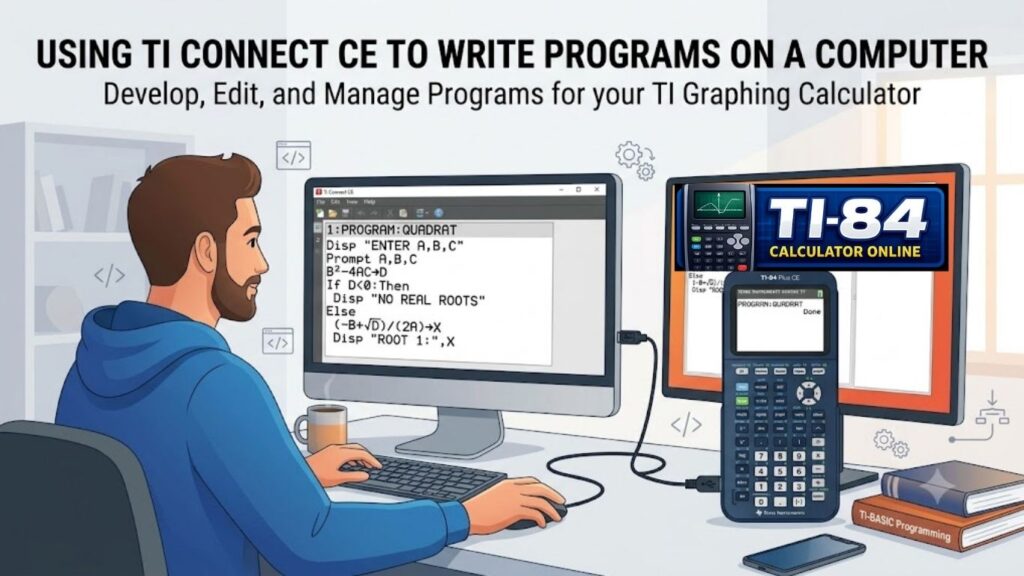
TI Connect CE is also useful for backing up your entire formula library before a calculator reset and for moving programs between calculators, since TI-BASIC programs transfer easily between any TI-84 Plus CE or TI-84 Plus model.
Some TI-84 Plus CE models include Python support, while all TI-84 Plus CE calculators support TI-BASIC. The examples in this guide use TI-BASIC because it works across all TI-84 Plus CE models.
The examples in this guide use TI-BASIC because it works across all TI-84 Plus CE models, though the formula programs in this guide use standard TI-BASIC, which works on every TI-84 Plus CE regardless of OS version.
Formula Programs vs. the Built-In Equation Solver
The TI-84 Plus CE also has a built-in equation solver, found under MATH and then 0:Solver. It is worth knowing how this compares to a custom formula program, since they solve different problems.
The equation solver is best for a single equation you only need to solve once or twice. You type the equation in directly, tell the calculator which variable to solve for, and it finds the answer using numerical methods. It does not save the equation permanently in an easy-to-reuse way, and setting it up each time takes a few extra steps.
A custom Try building your first Program Formulas Into TI-84 Plus CE today on your calculator, or practice first on our TI-84 calculator online tool, and once you are comfortable with the basics, come back and expand your library with programs for trigonometry, statistics, or whatever subject you are tackling next. is better when you use the same formula often. Once saved, it stays in your Program Editor list, asks for exactly the inputs you need through Prompt commands, and gives you clean output through Disp every single time, with no retyping.
In short, use the Equation Solver for a one-off calculation, and program formulas into the TI-84 Plus CE with a saved program for anything you will use more than once, such as the quadratic formula, distance formula, or compound interest formula covered in this guide.
Frequently Asked Questions
How do you save formulas on a TI-84 Plus CE?
To program formulas into TI-84 Plus CE, open the Program Editor with the PRGM button, create a new program, type your formula using Prompt and Disp commands, then exit with 2nd and MODE to save it automatically.
Can you create custom programs on a TI-84 calculator?
Yes. The TI-84 Plus CE supports fully custom programs written in TI-BASIC, and you can create as many as your calculator’s memory allows.
What programming language does the TI-84 Plus CE use?
The TI-84 Plus CE runs on TI-BASIC by default, and a current TI-84 Plus CE OS update also adds TI-84 Plus CE Python support as an additional option.
How do I edit a TI-84 program?
Press PRGM, choose EDIT instead of NEW, select the program you want to change, then update the code and exit to save your changes.
How do I run a saved program on a TI-84?
Press PRGM, select the program name from the list, and press ENTER twice to start it.
Conclusion
Now that you know how to program formulas into TI-84 Plus CE, you can stop retyping the same equations and start building a formula library that saves you time on every homework set, quiz, and exam review. Start small with one formula program, like the slope formula or quadratic formula, then keep adding to your collection as new topics come up in class.
Try building your first formula program today, or practice first with our TI-84 Calculator Online tool. Once you are comfortable with the basics, come back and expand your library with programs for trigonometry, statistics, and other subjects.
All commands, syntax, and menu paths in this guide were checked against the official TI-84 Plus CE guidebook and TI-BASIC documentation published by Texas Instruments at education.ti.com, so you can follow the steps above with confidence that they match your calculator’s actual
Related Reading
- TI-84 Calculator Online
- TI-84 Simulator
- TI-84 Graphing Calculator Online
- How to Graph on a TI-84 Calculator
- How to Reset a TI-84 Calculator
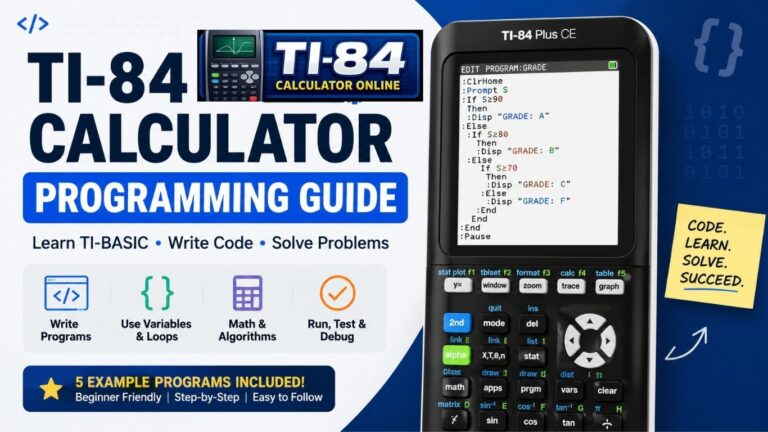
- TI-84 Calculator Programming Guide (2026)

2 Comments