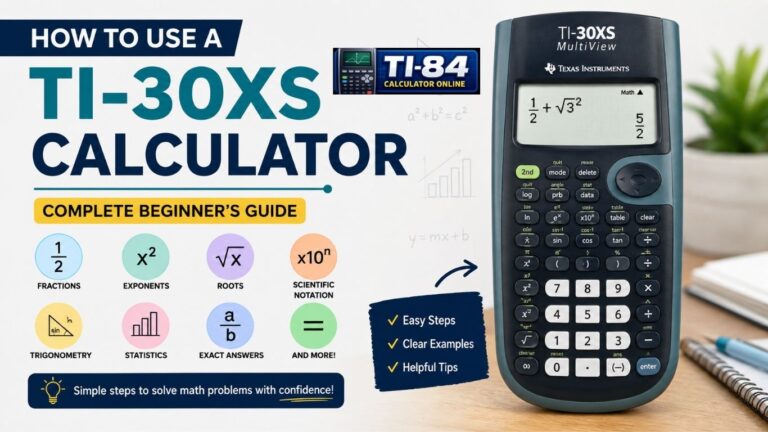
Using the TI-30XS for fractions and decimals gets a lot easier once you know the exact keys to press. If your calculator keeps showing a decimal when you expect a fraction, or a fraction template that won’t let you proceed, this guide fixes both problems. It covers the exact key sequences for entering fractions, working with mixed numbers, converting between fractions and decimals, and the one step most students forget: leaving the fraction template correctly.
If you’re just getting started with this calculator, our beginner’s guide to using a TI-30XS covers the basics before you dive into fractions here.
The TI-30XS for fractions and decimals works through a few dedicated keys. Press [n/d] to enter a fraction, type the numerator, press the down arrow to reach the denominator, type it, then press the right arrow to exit the template before continuing your expression. To convert a result between fraction and decimal form, press 2nd, then the answer toggle key marked F↔D. The calculator defaults to simplified improper fractions, not mixed numbers.
MathPrint vs. Classic Mode: TI-30XS for Fractions and Decimals Setup
Before entering fractions, check which display mode your calculator is in, since it changes how fractions look and how you enter them.
- MathPrint mode (the default) shows fractions, exponents, and square roots the way they appear in a textbook, with the numerator stacked above the denominator. You move between the numerator and denominator using the arrow keys.
- Classic mode displays everything on a single line instead, similar to older TI-30X calculators. In Classic mode, fractions entered with [n/d] don’t allow operators, functions, or complex fractions inside the numerator or denominator.
You can switch modes from the Mode screen. This guide uses MathPrint mode, since that’s the default and what most students use today.
How to Enter Fractions Using TI-30XS for Fractions and Decimals
The TI-30XS MultiView has a dedicated fraction key, [n/d], near the top of the keypad.
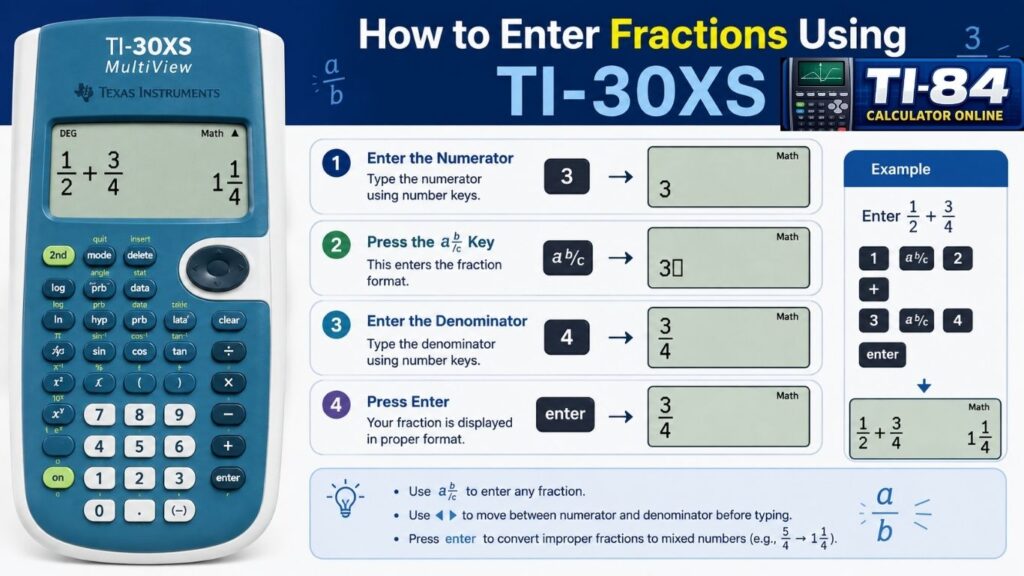
Here’s how to enter a fraction in MathPrint mode:
- Press [n/d].
- Type the numerator (the top number).
- Press the down arrow to move into the denominator box.
- Type the denominator (the bottom number).
- Press the right arrow to exit the fraction template.
- Press Enter to calculate.
Step 5 matters more than it looks. If you skip the right arrow, the calculator keeps treating anything you type next as part of the denominator, instead of the next part of your expression.
Example: To calculate 3/4 + 1/2, press [n/d], type 3, arrow down, type 4, arrow right, press the plus key, press [n/d] again, type 1, arrow down, type 2, arrow right, then press Enter. The screen displays 5/4.
Table of Contents
How to Enter and Convert Mixed Numbers on the TI-30XS
A mixed number combines a whole number and a fraction, like 2 1/3. The TI-30XS uses two related but different key combinations here.
To enter a new mixed number, use 2nd [U n/d]:
- Type the whole number.
- Press 2nd, then [U n/d].
- Type the numerator, arrow down, type the denominator.
- Press the right arrow to exit the template.
- Press Enter.
Example: For 2 1/3, type 2, press 2nd [U n/d], type 1, arrow down, type 3, arrow right, then Enter. Since the calculator defaults to improper fractions, the answer displays as 7/3.
To convert an existing result between improper fraction and mixed number form, use 2nd [n/d↔U n/d] instead. If your screen shows 7/3 and you want 2 1/3, press 2nd [n/d↔U n/d]. Pressing it again switches back to improper form.
These are two separate functions on the calculator: [U n/d] creates a new mixed number, while [n/d↔U n/d] converts a result you already have.
How to Calculate Fractions on the TI-30XS
Once fractions are entered correctly, fraction operations work like any other arithmetic on the TI-30XS.
| Operation | Example | Result |
| Addition | 1/2 + 1/4 | 3/4 |
| Subtraction | 3/4 − 1/4 | 1/2 |
| Multiplication | 2/3 × 3/4 | 1/2 |
| Division | 1/2 ÷ 1/4 | 2 |
For each one, enter the first fraction, press the right arrow to exit its template, press the operator key, enter the second fraction, exit its template, then press Enter. The calculator automatically simplifies the answer to its lowest terms.
If you’re using fractions inside larger algebra problems rather than standalone calculations, our TI-30XS calculator for algebra guide covers how fraction entry fits into equation solving and variable storage.
How to Convert a Fraction to a Decimal on the TI-30XS
The TI-30XS has an answer toggle key, marked F↔D, that switches your last result between fraction and decimal form.
- Calculate your fraction and press Enter.
- Press 2nd, then the F↔D key.
- The calculator displays the decimal version.
Example: 3/4 becomes 0.75, which is an exact decimal representation because the division terminates. A fraction like 1/3 produces a repeating decimal, 0.333…, rounded to fit the screen that’s a decimal approximation, not an exact value.
How to Convert a Decimal to a Fraction on the TI-30XS
Enter the decimal, press Enter, then press 2nd, then F↔D again.
Example: Enter 0.75, press Enter, press 2nd [F↔D]. The screen switches to 3/4.
This works cleanly for terminating decimals.A recurring decimal such as 0.666… may be converted to a fractional value based on the digits available to the calculator. Not a perfectly exact one, since the display only holds so many digits. Also worth remembering: calculations that mix in decimal values can return a decimal result even if you expected a fraction, since the format depends on what you actually typed, not just what the final value could be written as.
Does the TI-30XS Default to Mixed Numbers?
No. The TI-30XS MultiView defaults its output to improper fractions, and results are automatically simplified. A calculation might show 7/3 rather than 2 1/3. If you want the mixed number form, convert it manually with 2nd [n/d↔U n/d].
If your answer is showing as a decimal instead of a fraction, check whether you typed a value using the decimal point key rather than the [n/d] template; that’s the most common cause.
How to Simplify Fractions on the TI-30XS
A simplified fraction has no common factor between the numerator and denominator other than 1, like 2/3 instead of 12/18.
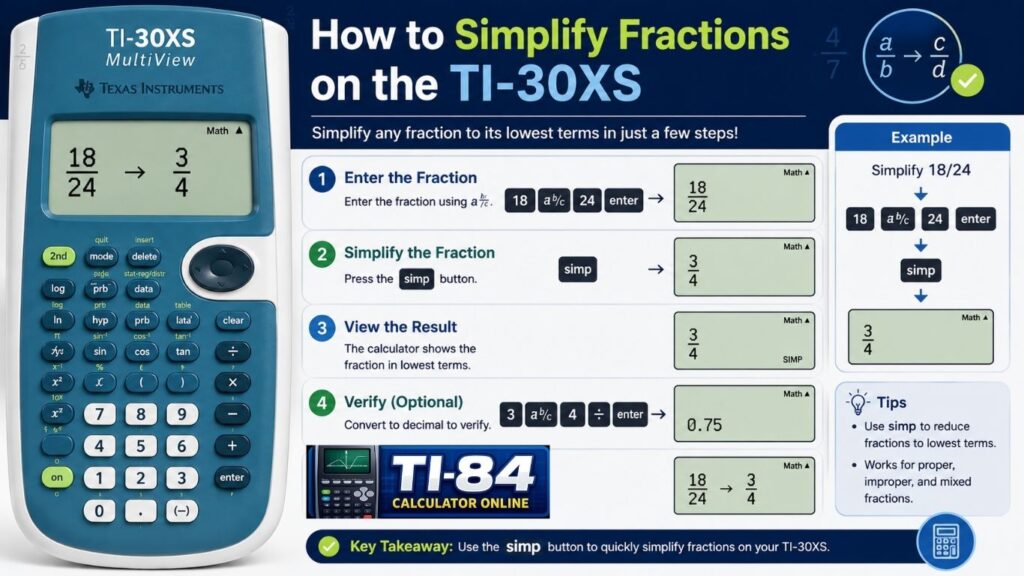
The TI-30XS automatically simplifies fraction results. Enter 12/18 and press Enter, and the calculator returns 2/3 with no extra steps needed.
Common Mistakes When Using TI-30XS for Fractions and Decimals
Skipping the right-arrow exit step
Forgetting this makes the calculator keep adding your next input into the denominator.
Mixing up the two mixed-number keys
Use [U n/d] to enter a brand-new mixed number, and [n/d↔U n/d] to convert a result you already calculated.
Treating a rounded decimal as exact
Repeating decimals are approximations, not precise values.
Typing decimal values into a fraction problem
This can force a decimal result even when you wanted an exact fraction.
Not checking MathPrint vs. Classic mode first
Fraction entry works slightly differently in each mode.
Can You Use TI-30XS Online for Fraction Practice?
If your physical calculator isn’t nearby, our TI-30XS calculator online tool lets you practice the same fraction entry, mixed number conversion, and F↔D toggle steps described above, using the same key layout. It’s a convenient way to check homework or run through examples before an exam.
If you also work with a TI-84 alongside your TI-30XS, our TI-84 calculator online and TI-84 simulator tools follow the same practice-first approach for that calculator.
Frequently Asked Questions
How do I enter a fraction on a TI-30XS?
Press [n/d], type the numerator, arrow down, type the denominator, then arrow right to exit the template before pressing Enter.
How do I enter a mixed number on a TI-30XS?
Type the whole number, press 2nd [U n/d], enter the numerator and denominator, arrow right, then press Enter.
How do I convert a fraction into a decimal on a TI-30XS?
Calculate the fraction, then press 2nd, followed by the F↔D answer toggle key.
How do I convert a decimal into a fraction?
Enter the decimal, press Enter, then press 2nd [F↔D] again.
Can the TI-30XS simplify fractions automatically?
Yes. Fraction results are reduced to lowest terms without a separate simplify button.
Does the TI-30XS show mixed numbers by default?
No, it defaults to improper fractions. Use 2nd [n/d↔U n/d] to convert a result to mixed-number form.
Final Takeaway
Working with TI-30XS for fractions and decimals comes down to four key combos: [n/d] to enter a fraction, 2nd [U n/d] to enter a mixed number, 2nd [n/d↔U n/d] to convert between improper fraction and mixed number, and 2nd [F↔D] to toggle between fraction and decimal. Remember to exit every fraction template with the right arrow before continuing, and remember that the default output is an improper fraction, not a mixed number.
Try the examples above on your own TI-30XS calculator online or your physical device, and keep this guide as a quick reference the next time a fraction problem doesn’t behave the way you expect.
Verified against official Texas Instruments documentation: T